
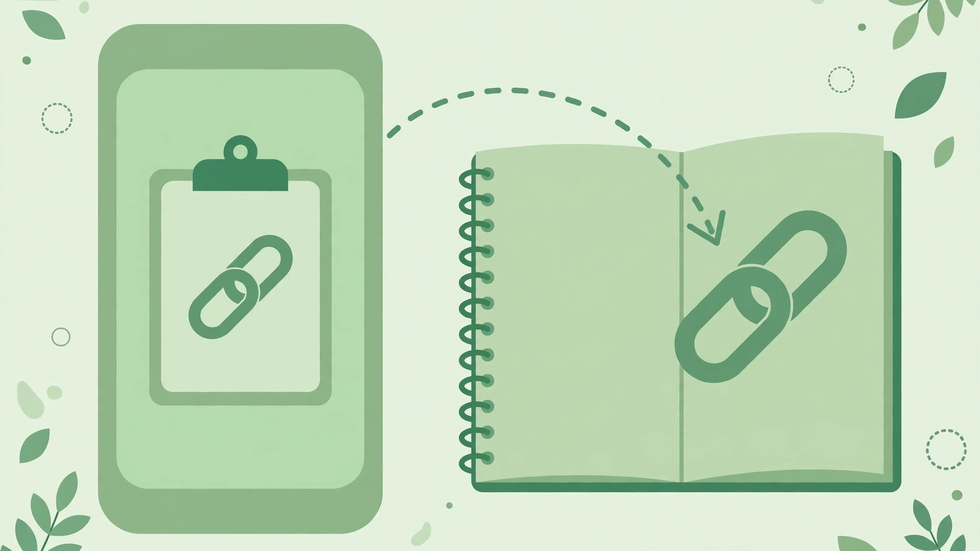
Everyone has lost a link they meant to read later: copied from a message, distracted by a call, and gone by evening because the clipboard held only the next thing copied. A clipboard macro fixes that quiet leak. It watches for copied links, checks that they are genuinely new, and appends them to a running list in your notes app — without you opening anything, pasting anything, or remembering anything. This guide builds that macro carefully, because clipboard automation touches private data by nature: it must save only links, ignore passwords and other sensitive copies, avoid duplicates, and never send your clipboard anywhere you did not intend.
The value is in the habit it creates. When every copied link is captured automatically, you stop copying links “just in case” and then losing them, and you start trusting that your reading list will be there when you have time. Researchers, students, shoppers comparing products, and anyone who shares articles with friends all benefit, because the capture happens at the moment of interest, which is exactly the moment most easily lost. The design challenge is restraint: a macro that saves everything becomes a junk drawer, while a macro that saves only clean, new links becomes a tool you actually revisit.
Prerequisites
You need MacroDroid with clipboard trigger support and a notes app that can receive text — most notes apps accept shared text or an appended note through a share action, and this guide uses the approach your app supports, whether that is a share intent, a file append, or a note-creation action. You also need clipboard access permissions, which Android guards closely; grant them deliberately and understand what they mean. Decide where saved links will live: a single note titled “Links to Read” is simplest, while separate notes by topic suit heavier collectors. Choose one destination to start, because a macro writing to three places at once is three times as hard to debug. Finally, decide your privacy rules in advance: the macro will save links only, never other copied text, and it will never upload the clipboard to a server.
Back up your macros before adding clipboard automation, and clear your clipboard of anything sensitive before testing, so a test run cannot accidentally capture something private.
Step-by-Step Setup
Step 1: Create a clipboard trigger that only fires for links
Create a new macro with a Clipboard Changed trigger. Immediately add a condition that the clipboard content looks like a link: it starts with “http://” or “https://”, or your clipboard tool reports it as a web address. This filter is the most important part of the whole macro, because without it the macro would try to save every copied word, code, and password. Test the filter by copying a plain sentence and confirming nothing happens, then copying a link and confirming the macro wakes. If your trigger fires for all clipboard changes, the filter condition is what keeps it polite; never remove it for convenience.
Step 2: Clean the link before saving
Copied links often carry tracking additions, extra spaces, or line breaks from the app they came from. Add actions that trim whitespace from the clipboard text and, if you are comfortable, strip the most common tracking parameters while keeping the core address intact. Be conservative here: removing too much can break a link, while removing nothing merely leaves a longer address. Save the cleaned result in a variable called “clean_link”. Display it in a test notification first and compare it with the original, confirming the destination still loads. Only when cleaning is proven safe should the macro write anything anywhere.
Step 3: Check for duplicates
Nothing clogs a reading list faster than the same link saved five times. Before writing, check whether the link already exists in your destination note or list. How you check depends on your notes method: if you append to a text file, read that file and search for the link; if you use a notes app action, maintain a simple log variable or file of saved links and check against it. If the link is already present, stop silently or show a brief “already saved” toast — do not save a second copy. Test duplication deliberately by copying the same link twice and confirming only one entry appears. This single check is what keeps a months-old list usable instead of embarrassing.
Step 4: Append the link with a date and source hint
When the link is new, append it to your notes destination with a short, useful line: the date it was saved, and the link itself. A date turns a pile of links into a timeline you can prune — links older than a month can be reviewed or deleted — and a brief source hint, such as the app name if your trigger provides it, helps you remember why you saved it. Keep the format consistent, one link per line or one entry per paragraph, so the note stays scannable. Avoid adding the full page title automatically unless your method provides it reliably; a wrong title is worse than no title. Save, then open the note and confirm the entry looks exactly as intended.
Step 5: Add a quiet confirmation and a pause control
A macro that works invisibly can feel uncanny, so add a gentle confirmation: a short toast or a quiet notification saying “Link saved” that disappears on its own. Keep it brief and silent, because a loud alert for every copied link would quickly become a reason to disable the macro. Equally important is a pause control: a tile or quick setting that disables the clipboard macro when you are copying sensitive material, working with passwords, or simply do not want capturing for a while. Show yourself using the pause control during testing, so the habit exists before you need it. A clipboard macro without an off switch is a macro you will eventually resent.
Step 6: Review and prune the list weekly
Automation captures; only you can curate. Set a weekly reminder to open the links note, read or delete entries, and move keepers into proper notes or bookmarks. Delete anything older than a month that you have not opened, because an unread link ages into guilt rather than value. While reviewing, check the macro’s behaviour too: are duplicates still appearing, are non-links slipping through, is the confirmation too noisy? Adjust one setting at a time. A clipboard macro is a living tool, and a five-minute weekly review keeps it honest.
Testing and Verification
Test the full chain: copy a fresh link and confirm it appears in the note within seconds, with the correct date and no extra characters. Copy a plain sentence and confirm nothing is saved. Copy the same link again and confirm no duplicate appears. Copy a link with trailing spaces and confirm the cleaned version is saved. Test the pause control by disabling the macro, copying a link, and confirming nothing is saved, then re-enabling it. Test after a restart, because clipboard access can behave differently on a fresh boot. Only when all of these pass is the macro ready for everyday use.
Troubleshooting
If nothing is saved, check clipboard permissions first, then the link filter — a filter that is too strict will reject valid links, especially shortened links or links without “https://” at the start. If non-links are being saved, the filter is too loose or missing; restore the address check. If duplicates appear, the duplicate check is reading the wrong destination or comparing uncleaned text against cleaned text; make both sides use the cleaned variable. If saved links are broken, the cleaning step removed too much; simplify it to trimming whitespace only and retest. If the macro stops working after an update, recheck permissions, because Android frequently resets clipboard access after system updates. If you ever suspect the macro captured something sensitive, delete that entry immediately, pause the macro, and review its destination before re-enabling it.
Tips
Keep the destination to one note until the habit is established; you can split by topic later once capture is reliable. Use the weekly review to delete aggressively — a short, current list beats a long, stale one. Never let a clipboard macro send data to a server, a message, or a shared document; its destination should be your private notes. Consider excluding specific apps from capture if your setup allows it, such as a password manager or banking app, for extra peace of mind. Finally, remember that the macro serves your attention, not the other way round: if saving links starts feeling like a chore, simplify the format until it feels effortless again.
Frequently Asked Questions
Does a clipboard macro save everything I copy?
No, not if built as in this guide. The link filter ensures only clipboard content that looks like a web address is saved, and plain text, codes, and other copies are ignored.
Is clipboard automation safe for passwords?
It can be, provided the link filter is in place and you use the pause control when copying sensitive material. Never build a clipboard macro that saves all copied text indiscriminately.
Why is the same link saved more than once?
The duplicate check is missing, reading the wrong destination, or comparing cleaned text against uncleaned text. Make both sides use the same cleaned variable and test by copying one link twice.
Where do saved links go?
To the notes destination you chose — a single “Links to Read” note, an appended file, or your notes app’s entry, depending on the method your app supports. Choose one destination to start.
Can I pause link saving temporarily?
Yes, and you should. A tile or quick setting that disables the clipboard macro lets you copy sensitive material or work privately without capturing, and you can re-enable it when ready.