The new phone is set up, your apps are back, and MacroDroid opens to an empty list — months of tuned automations still sitting on the handset in the drawer. The good news is that to restore macros new phone macrodroid migrations cleanly is mostly a matter of order: export properly from the old phone, import once on the new one, then rebuild the device-specific layer that no export can carry. The bad news is that skipping the middle steps produces the classic half-migrated state, where macros exist but silently fail for a dozen different reasons.
Keep the old phone. Do not wipe it, trade it, or let its battery die in a drawer until the new phone has run your full routine for several days. It is your only complete reference: macro settings you forgot you changed, trigger lists you can re-learn from, and the export source if the first import goes wrong. If the old phone is already gone, work with whatever you have — an export in cloud storage, an automatic backup inside a phone backup — and accept that some device-specific triggers will need rebuilding from memory. The recovery mindset from the corrupted macro files guide applies here too: preserve every copy before you experiment with any of them.
Why a Restored Setup Half-Works: Causes in Order
A migration is not one problem but a stack of small ones. These are the layers that explain a restore which looks complete and behaves incomplete.
- No export was ever taken: macros lived only inside the old phone’s app data, so nothing exists to import until the old device produces an export or a backup is found.
- Import succeeded, permissions did not: the macros reference notification access, accessibility, SMS, location, and special settings that are per-device grants and always start empty on a new phone.
- ADB and helper state missing: elevated actions need their grants re-issued and the helper installed and matched on the new device, exactly as on a first setup.
- Device-specific triggers point at the old hardware: learned cell towers, paired Bluetooth identities, and some saved networks belong to the old phone’s radios and registrations.
- Version differences: a newer MacroDroid on the new phone may import an older export with renamed actions or changed defaults, and vice versa, which is the territory of the export and import errors guide.
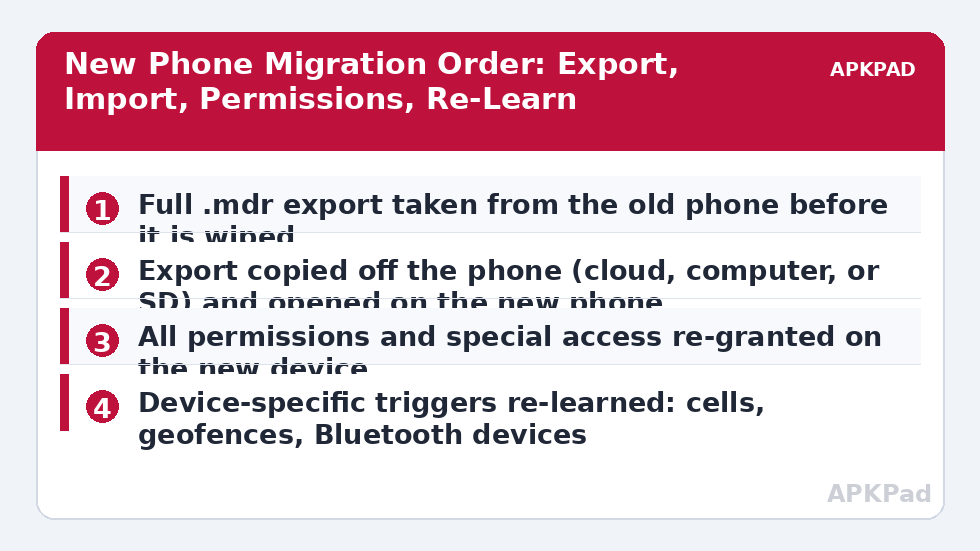
Restore Macros on a New Phone in the Right Order
Follow the order even if parts feel slow. Each stage assumes the previous one is solid, and the permission stage in particular cannot be shortcut by importing harder.
Step 1: Export From the Old Phone and Get the File Off It
On the old phone, open MacroDroid and use its export or backup option to produce a full export of all macros, then copy that .mdr file somewhere that is not the old phone: cloud storage, a computer over USB, or a message to yourself you can open on the new handset. Note the MacroDroid version on the old phone and the macro count while you are there — those two numbers are your verification targets later. If the old phone also holds an automatic backup newer than your last manual export, export fresh now anyway; a deliberate export taken today beats reconstructing which backup is newest. Store a second copy of the file before you touch the new phone, because the entire migration hangs on this one artefact.
- Full export produced on the old phone and dated today.
- Export file copied off the old phone to at least one other location.
- Old phone’s MacroDroid version and macro count noted for comparison.
How to read this: the estimate adds a small always-on idle cost for MacroDroid itself (about 0.4% of battery per day) to a per-class daily cost for each trigger type you use, scaled slightly by how many macros you run. These are planning estimates from that transparent model — not measurements from your phone. Use them to compare setups before you build, then confirm against the real numbers under Android Settings → Battery.
Step 2: Import Once on the New Phone, Then Re-Grant Everything
Install MacroDroid on the new phone, update it to the latest version first, then import the export and confirm the macro count matches the old phone before enabling anything exotic. Now work the permission list macro by macro, because a bulk assumption will miss one: standard permissions in the app page, notification access if any macro reads notifications, accessibility if any uses UI steps, display over other apps for floating buttons, and alarms and reminders for precise timing. Re-issue ADB grants from a computer for elevated actions and install the helper if your macros use it, matching versions as the helper version mismatch guide describes. Expect this stage to take longer than the import itself; it is the migration, the import was just the delivery.
- MacroDroid updated before import; macro count matches the old phone.
- Standard permissions, notification access, and accessibility re-granted as your macros require.
- ADB grants re-issued and helper installed and matched, if used.
Step 3: Re-Learn the Device-Specific Layer
Walk your trigger list and mark everything the old phone learned from its own hardware: cell tower lists, geofences, Bluetooth device identities, and saved Wi-Fi names that changed with a new router or a fresh pairing. Re-learn cells by visiting each location with the new phone, re-pair Bluetooth accessories so the triggers can select them by their real identities, and re-save any geofence so it registers on this device. Test each re-learned trigger in place rather than assuming the restored copy fires. While you are rebuilding, this is also the moment to retire macros the old phone carried for a job, a car, or a house you no longer have.
- Cell and geofence triggers re-learned or re-saved on the new phone.
- Bluetooth accessories re-paired and re-selected inside their triggers.
- Each device-specific trigger tested at its real location.
Verify the Fix: A Full Day Running on the New Phone Only
Verification is a day of real life with the old phone switched off or left at home. Your morning routine, commute triggers, work-hours behaviour, and evening macros should all fire on the new device, and the evening System Log review should show no permission errors you have not already explained. Keep the export file and the old phone untouched for at least a week after that clean day; migrations have a habit of revealing one forgotten macro on day four. Then take a fresh export from the new phone so your known-good backup describes the new setup, not the old one. The APKPad homepage and the Fixes & Errors index hold the permission guides this process leans on, and the sibling article on export and import errors between versions is the next read if the import itself misbehaved.
When This Fix Won’t Work
If the old phone is wiped and no export or backup exists anywhere, the macros are gone, and honesty beats false hope: no tool recovers app data from a factory-reset device in ordinary circumstances. Your recovery path is rebuilding, prioritising the few macros you actually miss over the first week. Some things also refuse to migrate by design — work-profile restrictions, carrier-locked features, and accessories that can only pair to one phone at a time will each need their own arrangement on the new device. Finally, a very old export imported into a much newer MacroDroid may partially convert; if several macros arrive damaged, import on a matched version first where possible, or rebuild the damaged few by hand using the old phone as the reference.
Frequently Asked Questions
I never exported anything. Are my macros gone with the old phone?
Only if the old phone is gone or wiped. If you still have it, open MacroDroid there and export immediately — your macros live in the app on that device. MacroDroid also keeps an automatic backup on the device itself. If the old phone was traded in and wiped with no export and no cloud copy, there is unfortunately no server copy to recover from, which is why the export habit matters.
Why do my restored macros show errors about missing permissions?
Because permissions never travel with the export. The .mdr file carries your macros, not the new phone’s grants. Notification access, accessibility, SMS, location, and special settings must each be granted again on the new device, and ADB-level grants such as WRITE_SECURE_SETTINGS must be re-issued from a computer for the new installation.
My location and cell triggers restored but never fire on the new phone. Why?
Those triggers learned the old phone’s world: its cell IDs, its geofence registration, its saved Wi-Fi and Bluetooth identities. The new phone has different hardware IDs and must re-learn cells and fences on site, and Bluetooth devices must be paired fresh so the trigger can identify them. Rebuild those specific triggers on the new device rather than expecting the restored copies to match reality.
Should I restore the automatic backup or my manual export?
Prefer whichever is newer and verifiably complete — check the date and, after importing, the macro count against the old phone. A manual export you took deliberately before switching is usually the cleanest source. If both exist, import the newer one, verify, and keep the other untouched as a fallback until the new phone has run cleanly for a few days.
Will my variables and their values come across to the new phone?
Macro definitions import, but do not assume every stored value and every piece of runtime state survives exactly as it was, especially across different MacroDroid versions. After importing, open your important macros, check key variables, and set any starting values deliberately. The sibling guide on variables losing their values explains how to design macros that do not depend on fragile state.