On many modern Android phones, long-pressing the power button no longer shows the power menu. It summons the voice assistant — Google Assistant, Gemini, Bixby, whichever the manufacturer favours — whether you wanted it or not. For people who use the assistant constantly, that is fine. For everyone else, it means the most discoverable button on the phone has been reassigned to someone else’s feature, and the actual power menu hides behind a button combination or a settings tile. This guide shows how to remap power button long press macrodroid users can set up: first the honest manufacturer setting that solves it in ten seconds where it exists, then what MacroDroid can add around the edges, with clear limits about what no app can reclaim.
What remap power button long press macrodroid work really involves
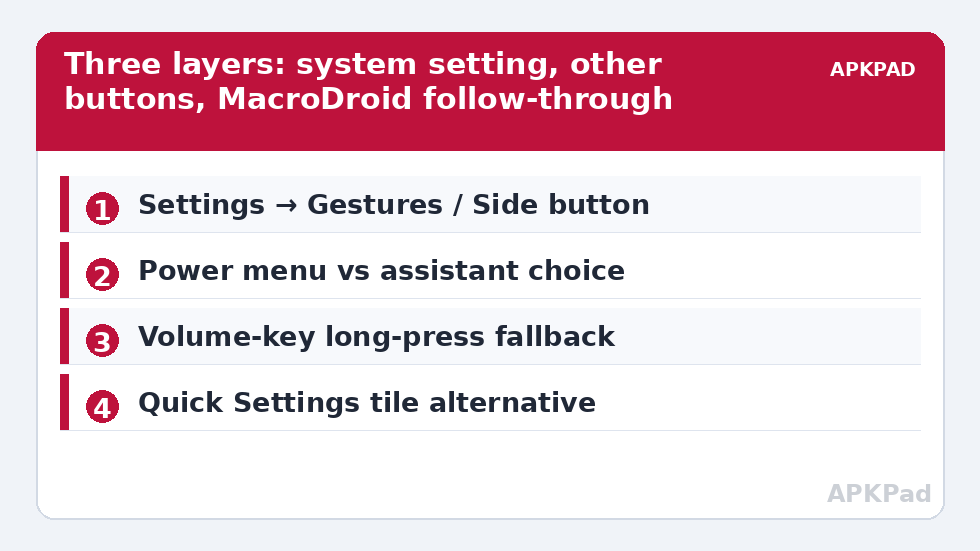
Start with the truth that shapes the whole article: on an unrooted phone, the power button’s long-press behaviour is decided by the system and the manufacturer, not by apps. MacroDroid cannot sit in front of the power button and intercept its long-press before the OS does — the button is handled at a lower level than normal app triggers, for good reasons involving emergency calls and forced restarts. So a MacroDroid-centred guide that promised a direct remap would be lying to you. What genuinely exists is a three-layer solution. Layer one: most manufacturers quietly include a setting to choose what the long-press does — assistant, power menu, or nothing. Layer two: accessibility-based button remapping can redirect other buttons (volume keys, a Bixby/side key, a squeeze or a fingerprint gesture depending on brand) toward actions you choose, if the power button itself proves immovable. Layer three: MacroDroid contributes context and follow-through — launching your chosen tool when an alternative trigger fires, opening the power-menu-adjacent functions you actually wanted, and restoring calm defaults. Work the layers in order; most readers will finish at layer one.
How to read this: the estimate adds a small always-on idle cost for MacroDroid itself (about 0.4% of battery per day) to a per-class daily cost for each trigger type you use, scaled slightly by how many macros you run. These are planning estimates from that transparent model — not measurements from your phone. Use them to compare setups before you build, then confirm against the real numbers under Android Settings → Battery.
Layer 1: find the manufacturer’s own setting (do this first)
- Pixel and near-stock Android: Settings → System → Gestures → Press and hold power button. Choose “Power menu” instead of “Digital assistant”.
- Samsung: Settings → Advanced features → Side button → Press and hold. Choose “Power off menu” instead of “Wake Bixby” (or your assistant of record). Samsung buries the most complete remapping options of any brand here, including double-press actions.
- Xiaomi / Redmi / Poco: Settings → Additional settings → Gesture shortcuts, or search Settings for “power button”. MIUI/HyperOS builds vary; some tie the long-press to the assistant through the assistant’s own settings page instead.
- OnePlus / Oppo / Realme: search Settings for “power button” or check Buttons & gestures. On several ColorOS builds the setting flips between assistant and power menu.
- Nothing found? Search your assistant app’s settings for “open with power button” style toggles — a few assistants claim the button from inside their own configuration.
If you found the setting: congratulations, you are done, and you needed no automation at all. We would rather tell you that than sell you a macro. Note the setting may be reset by major OS updates, and it is one of the items worth including in a periodic settings audit alongside the routines in automated ADB checks at device startup — a boot log noting assistant-vs-menu state would need a readable key, which most builds do not expose, so a manual glance after updates is the honest practice.
Layer 2: redirect a different button honestly
If your build locks the long-press to the assistant, consider whether your actual goal is “the power menu, fast” or “my tool, fast”. If it is the latter, a neighbouring button may serve better than the power key ever did:
- Volume-key long-presses are detectable by MacroDroid in many contexts and can launch a chosen app or macro. Caveat: they conflict with volume adjustment while media plays, so constrain the trigger to screen-off or specific apps if your build supports those conditions.
- Accessibility-based remapper apps can reassign hardware keys system-wide, but they require accessibility service access — a powerful permission you should grant only to established tools, and one Android periodically asks you to reconfirm. The category guide to custom Quick Settings tiles offers a zero-permission alternative worth trying first: a tile for your tool is one swipe away, no interception of any button required.
- Fingerprint and gesture shortcuts on Samsung, Motorola and others (chop, twist, swipe-down on the sensor) are manufacturer-supported, reliable, and exposed to MacroDroid-adjacent workflows; Motorola’s gestures in particular are effectively free remappable buttons.
Layer 3: the MacroDroid parts that earn their place
- Recover the power menu’s jobs, individually: the reason most people want the long-press back is not the menu aesthetic; it is one item inside it — usually Restart, Emergency, or a smart-home control panel. MacroDroid can put Restart-adjacent flows (on builds where a reboot action is available to it, often via Helper/shell privileges described elsewhere in this category) and smart-home panels behind a tile or floating button, which is faster than the old menu ever was.
- Tame accidental assistant launches during the transition: while you adapt, an assistant still firing unexpectedly can at least be made quieter — keep media volume rules sane, and note the assistant respects Do Not Disturb behaviour on most builds.
- Restore-on-reconnect for cars and desks: if you changed side-button behaviour and your car or dock workflow depended on it, the context triggers elsewhere in this category apply unchanged.
Two sibling routines complete the “phone behaves as I chose” theme for most readers: the lending scenario handled by guest mode that hides private apps, and output control handled by routing audio per app. All three start from the same principle you will find across the System Tweaks index and the APKPAD homepage: prefer the system’s own switch where it exists, automate the remainder, and say plainly when a door is closed.
What cannot be done, stated plainly
| Wish | Reality on unrooted Android |
|---|---|
| Intercept power long-press inside an app before the assistant opens | Not available to normal apps; the button is handled by the system |
| Completely disable the assistant | Possible on many builds by setting the default assistant to None in Default apps — this changes more than the button |
| Remap double-press power (camera) on every brand | Brand-dependent: Samsung exposes it, stock Android ties it to camera with limited alternatives |
| Use ADB to force a different long-press handler | Some builds expose assistant-related settings keys; they are undocumented, version-sensitive, and must be tested and recorded per device — never copy values between models |
Troubleshooting
- I changed the setting but the assistant still opens: you may have changed the assistant’s trigger in the wrong place — check both the system gesture/side-button setting and the assistant app’s own settings; on Samsung, also check for a separate Bixby Routines rule intercepting the key.
- The power menu setting vanished after an update: manufacturers relocate these options between releases. Search Settings for “side button”, “long press” and “assistant” in turn; the switch usually exists under one of those names.
- My volume-key macro fires while I am changing volume: add constraints — screen state, foreground app, or a “long press only” duration your build supports — or move the action to a tile and accept one swipe instead of a misfiring button.
- An accessibility remapper keeps stopping: OEM battery management is the usual suspect. Exempt the app from battery optimisation and check this site’s guidance on OEM power management behaviour; accessibility services are frequent casualties of aggressive sleeping-apps lists.
Undo
Every layer here flips back in its own settings page: restore the side-button/gesture choice to the assistant, remove any remapper’s accessibility access in Settings → Accessibility → Installed apps, and delete the supporting macros and tiles. Nothing in this guide writes irreversible state; the phone’s behaviour returns to the manufacturer default the moment you choose it.
Frequently Asked Questions
Can MacroDroid intercept the power button long-press directly?
No. On an unrooted phone the power button is handled by the system below the level apps can intercept, so MacroDroid cannot catch the long-press before the assistant or power menu appears. The working routes are the manufacturer’s own long-press setting, a different remappable button, or MacroDroid tiles and triggers that recover the actions you wanted.
Where is the setting to make long-press show the power menu?
On Pixel it is Settings → System → Gestures → Press and hold power button. On Samsung it is Settings → Advanced features → Side button → Press and hold. Other brands place it under Buttons, Gestures or Additional settings — searching Settings for “power button” or “side button” finds it on most builds.
If my phone has no long-press setting, what is my best alternative?
Give the job to a button or surface that is remappable: a volume-key long-press with careful constraints, a manufacturer’s gesture shortcut, an accessibility remapper from an established developer, or a Quick Settings tile running a MacroDroid macro. A tile is the zero-permission option and covers most real needs.
Will an OS update undo my remap?
It can. Major updates occasionally reset gesture and side-button preferences to the manufacturer’s default. After any large update, long-press the button once and confirm you get the menu you chose; re-applying the setting takes seconds.
Is it safe to give an accessibility service to a button remapper app?
Accessibility access is powerful — it can observe screen content and perform gestures — so grant it only to established, well-reviewed tools, review the permission after updates, and remove it if you stop using the app. If that trade feels wrong, the tile-based approach needs no such permission at all.