The fastest way to fix floating button overlay disappearing fullscreen problems is to separate a hidden button from a killed overlay. If you need to fix floating button overlay disappearing fullscreen behaviour on your phone, tap your MacroDroid floating button trigger inside a normal app first, then open the fullscreen app and watch closely: does the button vanish the instant the status bar hides, does it fade after a few seconds, or is it gone only when you return? Each pattern points to a different cause.
Write down the app name, whether it is a game, video player, or reader, and whether the button reappears when you swipe to reveal the status bar. That one observation saves a lot of random setting changes.
What Fullscreen Actually Does to Overlays
Android draws a MacroDroid floating button in an overlay layer above most apps, but fullscreen and immersive modes change the rules. An app can request immersive mode, hide system bars, and redraw at a higher layer for video or game content. Some launchers and game tools also actively suppress floating windows while a game is running. None of that means MacroDroid has crashed — the System Log will still show the macro service running, and the button often returns the moment you leave the app.
| Pattern | Likely cause | First check |
|---|---|---|
| Vanishes when video goes fullscreen, returns on exit | Immersive mode layering in that player | Test a second video app |
| Vanishes in games only | Game launcher or game booster blocking floating windows | Game Space / Game Launcher settings |
| Fades after 10-30 seconds everywhere | Button transparency or auto-hide behaviour, screen timeout overlay rules | Floating button trigger settings in MacroDroid |
| Gone until MacroDroid is reopened | Overlay permission revoked or process killed | Display over other apps permission |
| Present but taps do nothing in one app | That app captures touches, or lock / secure surface blocks interaction | Test the same tap on the home screen |
Fix Floating Button Overlay Disappearing Fullscreen Issues in Order
- Permission revoked. Display over other apps is a special access grant. A system update, a permission cleanup, or a “remove unused app permissions” prompt can revoke it, and the button then disappears everywhere, not just in fullscreen.
- OEM battery kill. If MacroDroid’s process is stopped, its overlay goes with it. This shows as a button that never returns until you reopen the app.
- Game and focus tools. Samsung Game Launcher, Xiaomi Game Turbo, and similar tools have explicit options to block floating windows and notifications during play.
- Android-version behaviour change. Newer Android versions restrict overlays on secure surfaces, setup screens, and some lock screen states regardless of your grant.
- MacroDroid setting. Button size, transparency, position locked to an edge, or a constraint on the trigger itself can make a working button effectively invisible.
Step 1: Re-Grant Display Over Other Apps
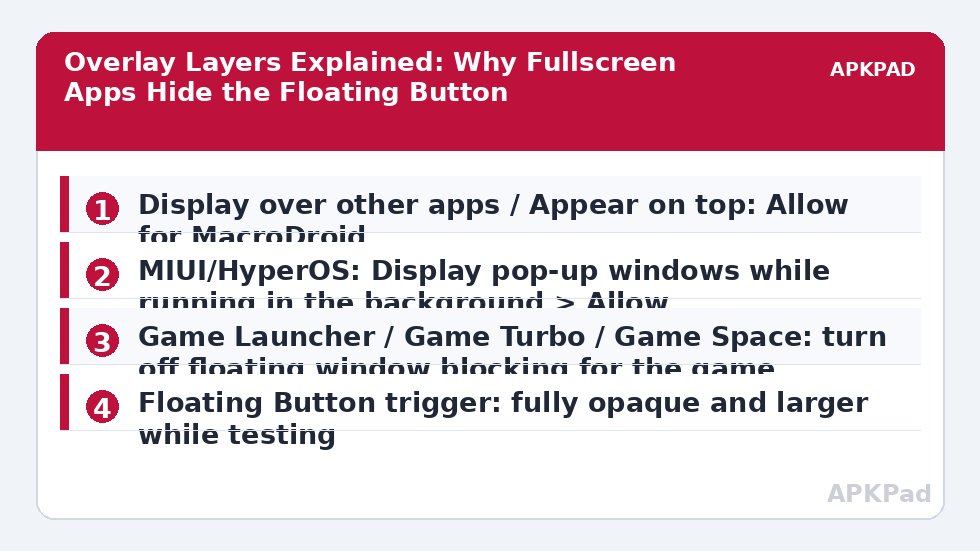
Open Android Settings, search for “Display over other apps” or “Draw over other apps”, find MacroDroid, and confirm the toggle is on. If it is already on, turn it off, return to MacroDroid, then turn it back on — this forces the system to re-register the window. Inside MacroDroid, open the Floating Button trigger, disable it, save the macro, then re-enable it and save again. That rebuilds the overlay window instead of reusing a stale one.
- MIUI / HyperOS: Settings > Apps > Manage apps > MacroDroid > Other permissions > Display pop-up windows while running in the background > Allow. Also enable “Show on lock screen” only if you actually need it there.
- One UI: Settings > Apps > Special access > Appear on top > MacroDroid > On.
- ColorOS: Settings > Apps > App management > MacroDroid > Permissions, and Settings > Apps > Special app access > Display over other apps > Allow.
- Pixel: Settings > Apps > Special app access > Display over other apps > MacroDroid > Allow display over other apps.
Step 2: Stop Game Tools From Suppressing the Button
If the button survives in a browser and a video app but dies in games, open your game tool before touching MacroDroid. On Samsung, open Game Launcher / Gaming Hub settings and look for options that block floating windows or lock navigation during games, and exclude your game or turn that block off. On Xiaomi, open Security > Game Turbo, choose the game, and disable restrictions on floating windows. On Oppo and OnePlus, open Games / Game Space settings for the same option. There is no single universal path because each OEM names it differently, but the setting lives in the game tool, not in MacroDroid.
Step 3: Make the Button Visible and Keep MacroDroid Alive
In the Floating Button trigger settings, set transparency to fully opaque for testing, increase the size, and move the button away from screen edges and corners, where fullscreen apps often reserve gesture zones. Remove any constraint on the trigger while you test — a time, mode, or variable constraint that evaluates false hides the usefulness of the button even when it is drawn. Then protect the process: set MacroDroid battery usage to Unrestricted using the paths in Step 1’s OEM list, and lock MacroDroid in Recents on MIUI and ColorOS by opening Recents, tapping the app menu, and choosing Lock. A closely related failure, where taps are blocked on secure surfaces, is covered in UI interaction failing on the lock screen.
If the button disappears everywhere after a few minutes rather than only in fullscreen, treat it as a background kill first and follow the OEM background fix before changing overlay settings again.
How to read this: the estimate adds a small always-on idle cost for MacroDroid itself (about 0.4% of battery per day) to a per-class daily cost for each trigger type you use, scaled slightly by how many macros you run. These are planning estimates from that transparent model — not measurements from your phone. Use them to compare setups before you build, then confirm against the real numbers under Android Settings → Battery.
Verification: Prove the Button Survives Fullscreen
- With the button visible on the home screen, open the fullscreen app that caused the problem and start actual playback or gameplay, not just the menu.
- Wait 60 seconds. Swipe once to reveal the status bar and note whether the button appears with it.
- Tap the button and confirm the macro runs — add a temporary Vibrate or Popup action so the result is unmistakable.
- Open MacroDroid > System Log and confirm a trigger entry at that timestamp with no constraint-blocked note.
- Rotate the phone once. Rotation redraws overlays, and a button that only fails after rotation points to a position or edge setting problem.
When This Fix Will Not Work
Some surfaces will never show the button, by design. Banking apps, DRM video at the highest protection level, password fields, the permissions dialog, and other secure windows sit above normal overlays on purpose, and Android will not let MacroDroid draw or tap there. A game that uses anti-cheat protection may also block overlays while it runs, and bypassing that is neither safe nor appropriate. In those cases use a different trigger for that context — a notification button, a widget, Quick Settings tile, or volume-button trigger — and keep the floating button for normal apps. More trigger-specific repairs are collected in the Fixes & Errors category.
Frequently Asked Questions
Why does the floating button disappear only in games?
Most game tools include an option to block floating windows during play so overlays do not interrupt the game. Open your OEM game tool — Game Launcher, Game Turbo, or Game Space — find the floating window or pop-up block for that game, and turn it off or exclude the game. The setting is in the game tool, not in MacroDroid.
Why does the button come back when I swipe down the status bar?
That pattern points to immersive fullscreen layering. The app hides system bars and draws over the normal overlay layer, and revealing the bars briefly restores it. Test a second fullscreen app: if only one app behaves this way, it is that app’s fullscreen implementation, and a different trigger for that app is the practical answer.
What permission does the floating button actually need?
It needs the special “Display over other apps” (Appear on top) grant for MacroDroid. Check it in Settings under Special app access, and on MIUI also allow “Display pop-up windows while running in the background”. If the grant was revoked by an update or permission cleanup, the button disappears everywhere until you re-grant it.
Why is the button visible but taps do nothing in one app?
That app is probably capturing touches or showing a secure surface that Android protects from overlay interaction. Test the same button on the home screen to prove the trigger itself works, then use a notification, widget, or Quick Settings trigger inside the problem app instead.
Why does the button vanish until I reopen MacroDroid?
That usually means MacroDroid’s process was killed, taking its overlay with it. Set MacroDroid battery usage to Unrestricted, allow autostart on MIUI and ColorOS, and lock the app in Recents. Then repeat the fullscreen test and check the System Log to confirm the service stayed alive.