UI Interaction actions work at breakfast, fail by lunch, and Settings shows the service off with no one having touched it. To fix accessibility service turning off macrodroid users have to find what switched it off, because simply turning it back on treats a symptom that returns on the same schedule. On Android the usual suspects, in order, are an OEM battery manager killing the app that hosts the service, Android removing access for an app it considers unused or restricted, and a cleaner or another accessibility app interfering.
Accessibility is a special-access listing that lets MacroDroid read screen content and perform gestures, so Android and manufacturers guard it more aggressively than an ordinary permission.
What the Failure Looks Like in the Log
Before changing anything, reproduce it once and read the evidence. Create a tiny test macro whose only action is a UI Interaction click or a UI Text read on a screen you can set up repeatably, run it, then open MacroDroid > System Log. If the service is already off, the log and the app will tell you the action could not run because accessibility is not enabled. Note the time it last worked. Then check Settings > Accessibility > Installed apps > MacroDroid. Three states are possible, and each points somewhere different.
- Service listed and off, app opens normally: something toggled the service off. Battery and cleaner routines are the prime suspects.
- Service on, but actions still fail: the listing survived but the process behind it was killed. This is a background-kill problem wearing an accessibility costume.
- MacroDroid greyed out with a restricted setting notice: Android has applied a restricted setting, typically after an install route it trusts less. Follow MacroDroid’s own prompts and your system settings to allow the restricted setting for the official app, rather than reinstalling from an unofficial source.
Actions failing only on the lock screen are a separate fault, covered in the guide to UI interaction failure on the lock screen.
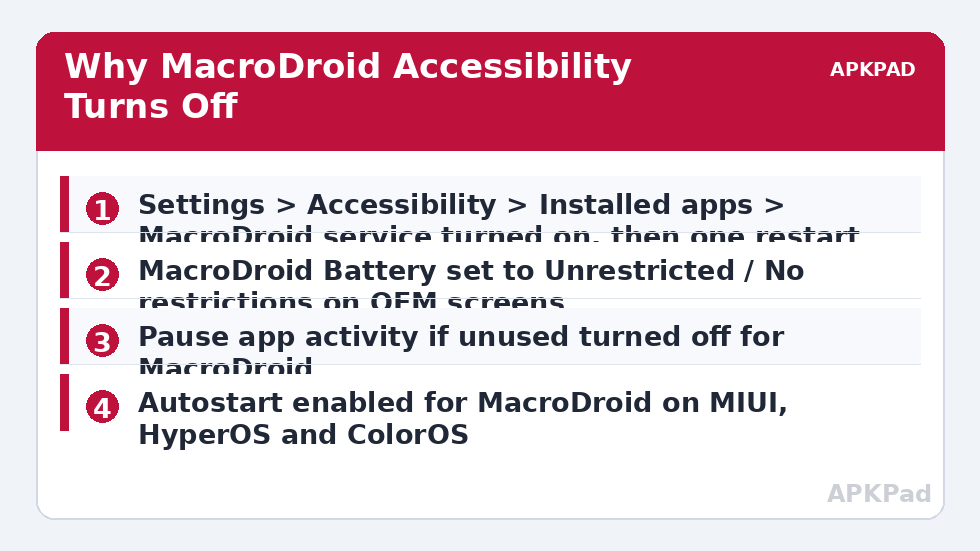
Fix Accessibility Service Turning Off MacroDroid Keeps Losing
Step 1: Re-enable it properly, then restart once
Open Settings > Accessibility > Installed apps > MacroDroid, turn the service on, confirm the system warning, and then restart the phone once. The restart matters because some OEM builds only register the service’s boot behaviour cleanly after a full restart following a fresh enable. After the restart, check the listing again before testing. If it is already off after a single clean reboot, you have a fast, reproducible failure and the steps below are not optional extras; one of them is your cause.
Step 2: Exempt MacroDroid from the OEM battery manager
This is the fix that resolves the majority of cases, because when the host app is killed, its accessibility service dies with it and some builds then show the service as off.
- MIUI / HyperOS: Settings > Apps > Manage apps > MacroDroid > Autostart on, Battery saver > No restrictions. In the Security app, also exclude MacroDroid from automatic cleaning.
- Samsung One UI: Settings > Apps > MacroDroid > Battery > Unrestricted, plus Settings > Battery > Background usage limits > Never sleeping apps > add MacroDroid. Then open Settings > Accessibility > Installed apps and confirm the service after a sleep cycle, because One UI’s sleeping-apps routine is the common trigger here.
- ColorOS: Settings > Apps > App management > MacroDroid > Battery usage > Allow background activity and Allow auto launch, and exclude it in Phone Manager’s cleanup.
- Pixel: Settings > Apps > See all apps > MacroDroid > App battery usage > Unrestricted. Also check Settings > Apps > Special app access for any unused-app pausing applied to MacroDroid.
Step 3: Stop unused-app and auto-reset routines
If you seldom open MacroDroid’s screens, Android may class it as unused and pause it, which can strip special access. Open Settings > Apps > MacroDroid and turn off the option to pause app activity if unused, where your version shows it, and in Permissions check that auto-reset is not applied. While you are there, confirm no third-party cleaner, antivirus or device-care automation is scheduled to “optimise” accessibility apps. Disable that routine for MacroDroid specifically rather than uninstalling tools you otherwise want.
Step 4: Check for a conflict with another accessibility service
Password managers, button remappers, screen filters and some OEM gesture tools also run accessibility services, and occasionally one service being force-stopped takes others down or a manufacturer limits how many run together. Temporarily turn off the other accessibility services, re-enable MacroDroid, and test for a day. If MacroDroid now survives, reintroduce the others one at a time. That is slower than guessing, but it identifies the actual conflict instead of leaving you with every service off.
How to read this: the estimate adds a small always-on idle cost for MacroDroid itself (about 0.4% of battery per day) to a per-class daily cost for each trigger type you use, scaled slightly by how many macros you run. These are planning estimates from that transparent model — not measurements from your phone. Use them to compare setups before you build, then confirm against the real numbers under Android Settings → Battery.
Reduce How Much Depends on Accessibility
While you stabilise the service, audit the macros that need it. Some use a UI click when a direct MacroDroid action or intent would do the same job without accessibility. Moving a few macros off UI Interaction reduces the blast radius next time the service drops. Keep accessibility for tasks that genuinely need screen reading or gestures.
Also give accessibility-dependent macros a visible failure mode: on failure, write to the System Log and show a brief notification, so you learn the exact time the service dropped. More routes are indexed on the Fixes & Errors page, including the broader background OEM fix.
Verify Over a Sleep Cycle and a Reboot
A five-minute test proves almost nothing here, because the routines that kill accessibility work on idle timers. Verify in two stages. First, re-enable the service, run your test macro successfully with the screen on, then lock the phone and leave it for at least an hour. Run the test again from a trigger, not by opening the app and pressing buttons, and check Settings > Accessibility > Installed apps > MacroDroid is still on, plus the System Log shows the action completed. Second, reboot the phone, wait two minutes, and repeat the triggered test without opening MacroDroid first. Passing both stages, idle and reboot, is the standard to call this fixed.
If it fails idle but survives reboot, an exemption is still missing in one of your OEM’s menus. If it survives idle but dies at reboot, look at autostart and boot-time cleaners.
When This Fix Won’t Work
On a work-managed device, an administrator can prohibit accessibility services for non-approved apps, and the service will be removed no matter what you set locally. Some banking and payment apps also refuse to work, or trigger warnings, while any accessibility service is active; that is their policy, not a MacroDroid fault, and the practical answer is to scope your macros so they do not run while those apps are in the foreground. If it still drops daily with every step correctly set, record the timing from the System Log and raise it with the manufacturer, because that pattern points to firmware behaviour.
Never solve this by installing a modified MacroDroid build that claims to lock accessibility on, and never disable Play Protect to keep such a build. The official app with correct battery and autostart settings keeps accessibility reliably on the brands covered here.
Frequently Asked Questions
Why does MacroDroid’s accessibility service keep turning itself off?
It rarely turns itself off. Usually the OEM battery manager kills MacroDroid’s process and the service dies with it, an unused-app routine pauses the app, or a cleaner or device-care automation removes the access. Exempt MacroDroid from battery restrictions, enable autostart on MIUI, HyperOS and ColorOS, turn off app pausing, and verify over an idle period and a reboot.
Does battery optimisation affect accessibility services?
Yes, indirectly and commonly. Battery optimisation and sleeping-app lists kill or freeze the app hosting the service, after which accessibility actions fail and some builds show the service as off. Setting MacroDroid to Unrestricted and, on Samsung, adding it to Never sleeping apps is a core part of the accessibility fix, not a separate optional tweak.
How can I tell when the accessibility service stopped working?
Give an accessibility-dependent macro a failure path that writes to the System Log and shows a notification when its UI action does not succeed. The timestamp on that log entry tells you when the service dropped, which helps you match it to an overnight battery routine, a scheduled clean, or a reboot instead of guessing.
Is it safe to leave MacroDroid’s accessibility service on?
For the official MacroDroid app, accessibility is what allows UI Interaction actions, screen text reading and gesture automation, and the system shows you a clear warning and listing you can revoke at any time in Settings > Accessibility. Only enable it if you use those features, review which macros use it, and never grant accessibility to an unfamiliar app that asks for it unexpectedly.
Why is the MacroDroid accessibility option greyed out?
Android can apply a restricted setting to apps it considers higher risk to grant accessibility to, which greys out the toggle until you explicitly allow the restricted setting for that app through system settings. Follow the prompts shown on your device for the official app, and if the restriction appeared after a system update, re-check it after the next update as well.