Your time-based macro fired at 07:00 yesterday, missed at 07:00 today, and the app icon was greyed in Recents. To fix macrodroid not working background oem behaviour you have to find which layer killed the process overnight, because Android itself rarely does it alone. On most phones the killer is the manufacturer’s battery manager sitting on top of Android, not Doze, and reinstalling MacroDroid changes nothing about that manager’s decision.
Work as a cause tree: change one setting at a time and prove each change with a test macro before moving on.
Read the Symptom Before You Touch a Setting
Three different failures look identical from the home screen, and they have different fixes.
| Symptom | Most likely layer | First check |
|---|---|---|
| All macros stop after 20-60 minutes idle | OEM battery manager killed the process | Autostart and battery restriction settings |
| Macros run while you use the phone, fail overnight | Doze or deep sleep delayed the alarm | Battery optimisation exclusion and a timed test |
| One macro fails, others still run | That macro’s trigger or a revoked permission | System Log entry for that macro only |
| Everything stopped after a system update | Permissions or exclusions reset by the update | Re-check autostart, battery and notification access |
Open MacroDroid, tap the hamburger menu, then System Log. Note the time of the last successful entry. If the log simply stops with no error, the process was killed. If it shows an error for a specific action, the process survived and the problem is narrower than a background kill. That distinction saves an hour of changing the wrong settings.
Fix MacroDroid Not Working Background OEM Killers First
Work through your brand only. Settings from another brand’s menu do not exist on your phone, and hunting for them wastes time.
Xiaomi, Redmi and Poco — MIUI and HyperOS
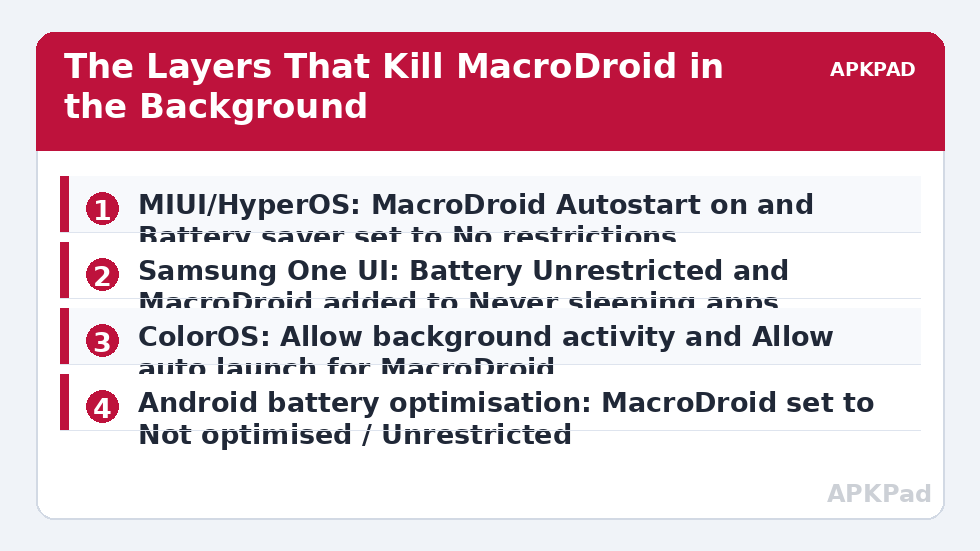
- Open Settings > Apps > Manage apps > MacroDroid > Autostart, and turn Autostart on. Without this, MIUI can block the app from restarting after it is swiped away or after a reboot.
- In the same app page, tap Battery saver and choose No restrictions. The default MIUI battery saver setting is the single most common cause on these phones.
- Open Settings > Battery > gear icon > App battery saver > MacroDroid, and confirm it still says No restrictions there too, because MIUI exposes the control in two places.
- Lock the app in Recents: open Recents, long-press the MacroDroid card, and tap the padlock. This is a supplement, not a substitute for the two settings above.
Samsung — One UI
- Open Settings > Apps > MacroDroid > Battery and select Unrestricted.
- Open Settings > Battery > Background usage limits > Never sleeping apps, tap the plus icon, and add MacroDroid. If it sits under Sleeping apps or Deep sleeping apps, remove it from there first.
- Check Settings > Device care > Automation and turn off any rule that puts unused apps to sleep automatically.
Oppo and Realme — ColorOS
- Open Settings > Apps > App management > MacroDroid > Battery usage and select Allow background activity, then Allow auto launch.
- Open Settings > Battery > More battery settings > Optimise battery use > MacroDroid and set it to Don’t optimise.
- In the Phone Manager or i Manager app, open Privacy permissions > Startup manager and allow MacroDroid there if your ColorOS version shows that separate list.
Google Pixel — Stock Android Controls
- Open Settings > Apps > See all apps > MacroDroid > App battery usage and select Unrestricted.
- Check Settings > Battery > Adaptive Battery. Adaptive Battery alone seldom kills MacroDroid once the app is Unrestricted, so leave it on for the rest of the system.
- If macros still pause overnight, check Settings > Battery > Battery Saver schedule, because a scheduled Battery Saver can re-restrict background work while it is active.
Then Remove the Android-Level Restriction
Even with the OEM layer satisfied, Android’s own optimisation can still defer background work. Open Settings > Apps > Special app access > Battery optimisation, or search Settings for “battery optimisation”, find MacroDroid, and set it to Not optimised or Unrestricted, depending on your version’s wording. If you previously excluded it and an update reset that choice, see the separate guide on the battery optimisation exclusion resetting after an update.
Next, check the permission layer. A revoked permission does not kill the app, but it can make it look dead: a macro whose trigger depends on notification access, location or accessibility will simply never fire. Open Settings > Apps > MacroDroid > Permissions and confirm the permissions your macros actually use are set to Allow, and re-grant any that an update or a permission auto-reset quietly removed.
Inside MacroDroid itself, open Settings and look for the foreground service or persistent notification option and enable it if it is off. The persistent notification is not decoration. On several OEM builds it is the signal that keeps the process classed as foreground and therefore far harder for a battery manager to justify killing. Dismissing or hiding that notification through system notification settings can undo the protection, so leave the notification visible, even if you set it to silent and minimised where your version allows that.
How to read this: the estimate adds a small always-on idle cost for MacroDroid itself (about 0.4% of battery per day) to a per-class daily cost for each trigger type you use, scaled slightly by how many macros you run. These are planning estimates from that transparent model — not measurements from your phone. Use them to compare setups before you build, then confirm against the real numbers under Android Settings → Battery.
Verify: Prove the Trigger Now Fires Unattended
Do not judge this fix by whether a macro runs while you are holding the phone. Build a test macro: trigger Time of Day set two minutes ahead, action Speak Text or Vibrate, plus a Log to System Log action. Lock the phone, put it face down, and do not open MacroDroid again. When the time passes, unlock the phone and open MacroDroid > System Log. You want two things: the spoken or vibration action happened on time, and the log shows the entry with the correct timestamp.
Repeat the test after at least one long idle period, ideally overnight, with a second test macro set for early morning. A process kill that happens after three hours of deep idle will not be caught by a two-minute test alone. If the short test passes and the overnight test fails, the remaining suspect is Doze behaviour, which is covered in the guide to delayed triggers in deep sleep and Doze mode. If no macros at all run after a reboot until you open the app manually, autostart is still blocked somewhere in your OEM menus.
More routes are collected on the Fixes & Errors index.
When This Fix Won’t Work
Be honest about the limits. If your phone has very little free RAM and you routinely run several heavy apps, the system low-memory killer can still reclaim MacroDroid regardless of battery settings, because that decision is about memory pressure, not battery policy. Work-profile and device-admin policies on employer-managed phones can also override your personal battery choices, and only the administrator can change them. If the System Log shows action errors rather than silence, follow that specific error instead, for example a notification access revoked error.
Do not install a so-called fixed MacroDroid APK from a third-party site and do not disable Play Protect to keep one running. Those routes trade a fixable settings problem for a genuine security problem, and they break the app’s own update path. The official app plus the correct OEM settings is the durable fix on every brand covered above.
Frequently Asked Questions
Why does MacroDroid work all day but stop overnight?
Overnight is when the phone sits idle longest, so Doze deepens and OEM battery managers do their most aggressive clearing. A process that survives active daytime use can still be killed after hours of inactivity. Set the OEM battery option to unrestricted, exclude the app from battery optimisation, and prove it with an early-morning test macro checked in the System Log.
Do I need to lock MacroDroid in the Recents screen?
On MIUI and HyperOS the Recents padlock helps, and on ColorOS locking the card can also prevent a swipe from fully stopping the app. It is a useful extra, but it does not replace autostart permission or an unrestricted battery setting. Treat the lock as the last step after the settings, not the first.
Will excluding MacroDroid from battery optimisation drain my battery?
Usually only slightly, because MacroDroid itself is lightweight when your macros are simple triggers and actions. The drain people notice almost always comes from a macro, not the app: a location trigger polling frequently or a macro stuck in a loop will cost far more. If drain appears after the fix, check the System Log for a macro firing hundreds of times.
MacroDroid stopped after a system update. What should I redo first?
Re-check, in this order: autostart on MIUI, HyperOS and ColorOS, the battery setting for the app, the battery optimisation exclusion, and then the app’s permissions. Major OEM updates are known to reset one or more of these to defaults without telling you, so assume a reset and verify each value rather than toggling things at random.
Should I turn off Adaptive Battery completely to fix this?
No. Turning Adaptive Battery off for the whole phone is broader than the problem and costs battery across every app. Set MacroDroid itself to Unrestricted and, on Samsung, add it to Never sleeping apps. That targets the exemption at the one app that needs to stay alive.