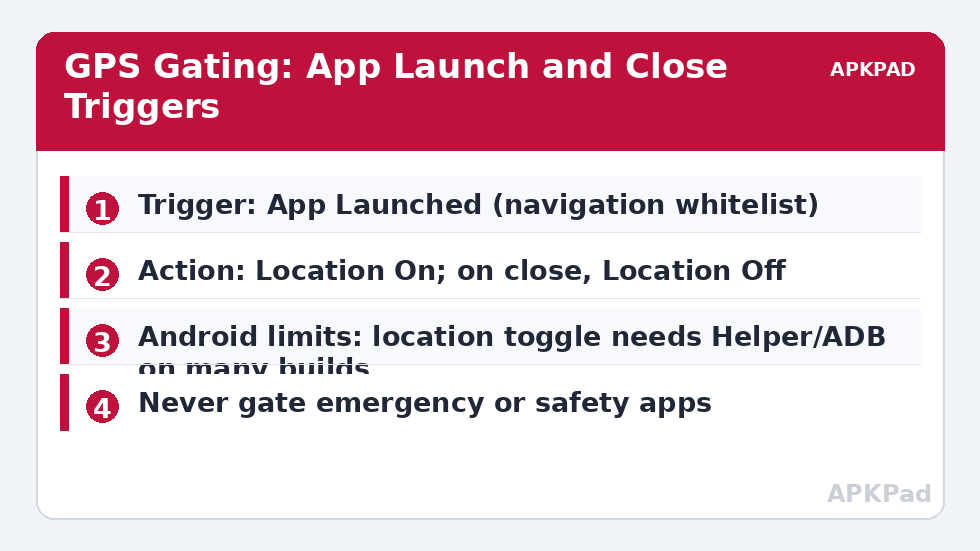
Location is the most expensive sensor your phone owns, and most of the time it serves apps that have no business knowing where you are. The pattern in this guide — disable gps location non navigation apps by default, restore it the moment a navigation app opens — threads the needle: Maps, rideshare and fitness tracking work exactly when you open them, and the GPS radio stops being a background tenant. One warning before we build: on many modern Android builds, toggling the master location switch requires the MacroDroid Helper, WRITE_SECURE_SETTINGS via ADB, or root. Where that is unavailable, the per-app permission route described later achieves most of the same result with no macro at all.
Why Not Just Leave Location On?
Modern Android is not naive about location: apps in the background face throttling, and the location icon tells you when a fix happens. But “throttled” is not “never” — weather widgets, social apps, shopping apps and SDKs embedded in free apps still request periodic fixes, and each GPS fix is a radio event plus a CPU wake. Users in the habit of checking their location-access log (Settings → Location → App permissions → see recent access) are often surprised by which apps asked, and when. The goal is not paranoia; it is aligning an expensive resource with actual use.
The Gating Pattern
| Element | Location On Macro | Location Off Macro |
|---|---|---|
| Trigger | Application Launched: Maps, your rideshare app, your running app (whitelist) | Application Closed for the same whitelist — with a 2-minute delay and re-check |
| Actions | Set Location On (high accuracy mode if your build exposes modes) | Set Location Off |
| Constraints | None | No whitelisted app currently in foreground; not in a MacroDroid-tracked trip state |
The delay on the off-macro prevents flapping: you close Maps to check a message, reopen it ten seconds later, and without the delay the location stack restarts twice for nothing. The re-check (constraint: whitelisted app not running in foreground) handles the multi-app case where your running app is still tracking in the background while you glance at Maps — closing Maps must not kill the run. MacroDroid cannot perfectly detect every background tracking session; treat fitness apps as “location stays on until I end the workout” by adding a manual toggle widget you control, rather than pretending automation sees everything.
How to read this: the estimate adds a small always-on idle cost for MacroDroid itself (about 0.4% of battery per day) to a per-class daily cost for each trigger type you use, scaled slightly by how many macros you run. These are planning estimates from that transparent model — not measurements from your phone. Use them to compare setups before you build, then confirm against the real numbers under Android Settings → Battery.
The No-Macro Alternative That Works Everywhere
Android’s per-app location permission has three useful states: Allow only while in use, Ask every time, and Don’t allow. Setting every non-navigation app to “while in use” or “don’t allow” — a five-minute audit — delivers most of this guide’s benefit with zero ongoing machinery, and it survives reboots, updates and MacroDroid hiccups. The macro pattern adds one thing permissions cannot: turning the master switch (and thus the GPS radio’s availability to everything, including system services) fully off between navigation sessions. Combine both for the strongest result. The cost model behind that advice — location as the priciest sensor in the phone — is broken down in our guide to reducing sensor polling frequency. The permission audit also fixes the privacy side of the same problem, which our location trigger cost comparison approaches from the automation side.
Safety Exceptions — Read Before Enabling
Never gate these behind a macro: emergency SOS features, Find My Device (which needs location to find a lost phone — the cruel irony of disabling it), family location sharing you have agreed to, and any medical or personal-safety app. The clean way is architectural: the off-macro turns location off only in the specific context of “a whitelisted navigation app closed”, and your safety apps should be given permanent permission at the Android level regardless. If your threat model or family setup depends on continuous location, skip this pattern entirely — the saving (typically a few tenths of a percent per hour on a phone with chatty apps, less on a clean phone) is not worth a safety feature failing silently. The rest of the battery hacks collection offers safer wins.
Reading Your Location Access Log Like an Auditor
Before building anything, spend five minutes with the evidence Android already collects. Settings → Location shows recent access: which apps asked, and how often. Sort your findings into three buckets. Explained: maps, weather (if you let it), camera geotags, your running app — access proportional to use. Lazy: apps granted “always” permission during a hasty install flow that only ever needed a one-time fix (a food app that asked once and kept the permission forever). Inexplicable: apps with no location-shaped feature in your usage that nonetheless appear weekly. The lazy bucket is the biggest prize in this entire article — switching those apps to “only while in use” or “don’t allow” costs one settings visit and pays forever, with no macro to maintain. The gating macro in the main text is for what remains after the audit: the master-switch hours when even well-behaved apps should have no radio to ask.
Households, Children and Borrowed Phones
Location gating has social geometry. On a child’s phone, location is frequently a safety feature a parent depends on — do not gate it, full stop; the saving is trivial and the failure mode is not. On a phone shared with a partner or used for family coordination, announce the change before making it: a location that goes dark at odd hours reads as evasion, not efficiency, and the resulting conversation costs more than the battery saved. For your own phone, the mature pattern is transparency by design — gating that is time-boxed, logged, and built to protect navigation and safety apps first. Efficiency tools that cannot survive being explained to the people they affect are usually mis-specified, and the location switch is the clearest case in the whole battery hacks collection.
Coarse Location: The Setting Between On and Off
Android’s permission dialog hides a middle gear many users miss: approximate (coarse) location. Apps granted approximate access learn your neighbourhood, not your address — sufficient for weather, local news, time-zone-aware tools and most “near me” features, at a fraction of the radio drama of precise fixes, which lean on network positioning rather than sustained GPS. A sophisticated gating setup uses three tiers, not two: precise location for the navigation whitelist (macro-gated by the master switch), approximate for the broad middle class of apps (a one-time permission choice, no macro), and denied for everything that never justified asking. Reviewers of your setup will note the master switch gets less necessary as the permission tiers improve — which is the healthy direction. The switch remains for the hours (overnight, travel days, low-battery stretches) when even coarse chatter is unwanted, and the two systems compose without conflict.
Frequently Asked Questions
Can MacroDroid toggle location without root?
On many devices, yes with the Helper app or WRITE_SECURE_SETTINGS granted via ADB; on others the toggle is blocked and MacroDroid can only open the location settings screen for you. Build the macro, test the action once with the screen on, and check whether the location state actually changed.
Will this break my weather widget and photo geotags?
The widget will show stale data between navigation sessions unless it can use coarse network location, and photos taken while location is off get no geotag. If either matters to you, whitelist those apps’ access at the permission level and accept the smaller saving.
Does turning location off save much battery really?
It depends entirely on your apps. A phone with disciplined apps saves almost nothing; a phone with several free apps polling location saves noticeably — a few percent across a day in bad cases. Check your location access log for a week before deciding.
What about MacroDroid’s own location triggers on this phone?
They stop working while location is off — including geofences and location-based macros from other categories. If you rely on location triggers, do not master-switch location; use the per-app permission approach instead.
High accuracy vs battery-saving mode — does the macro handle modes?
Some builds let MacroDroid set the location mode; many expose only on/off. Where modes are available, set high accuracy in the on-macro for navigation and leave mode control out of the off-macro entirely.