A text arriving at seventy on the motorway creates a bad choice: ignore it and wonder, or glance down and stop watching the road. Configuring auto read sms notifications aloud driving removes that choice entirely. Your phone hears the message, names the sender, and reads the content through the car speakers or your headset while your hands and eyes stay where they belong. This guide sets it up conservatively, limited to your own contacts, active only while you are actually travelling, and silent the rest of the day.
Safety first, before any steps: build and test this macro while parked, at home, with someone else sending you test messages. Set it up before driving and never interact with the phone while moving, not even to dismiss a misread message. If anything needs adjusting, pull over or wait until the journey ends. The whole point of the system is that the moving car requires nothing from you.
More driving-friendly automations live in the Macro Triggers index. The natural companion is automating your Bluetooth car connection to open Spotify, which can also serve as the signal that a journey has started, and creating an auto-reply for SMS and WhatsApp, which handles the reply side so senders know you are driving.
Designing the auto read sms notifications aloud driving macro
Two decisions shape this macro more than any setting. First, scope: read messages from your contacts, not every sender. Delivery codes, marketing texts, and group chat noise do not deserve airtime at speed, and unknown senders reading aloud is a privacy problem when passengers are present. Second, activation: the macro should exist only inside a driving context. MacroDroid gives you several honest signals for that context, a connected car Bluetooth device being the most reliable, with Activity Recognition for In Vehicle as a reasonable fallback. Using Bluetooth as the gate means the reader switches itself on when you start the car and off when you leave it, with no toggle for you to forget in either direction.
Macro breakdown: trigger, actions and constraints
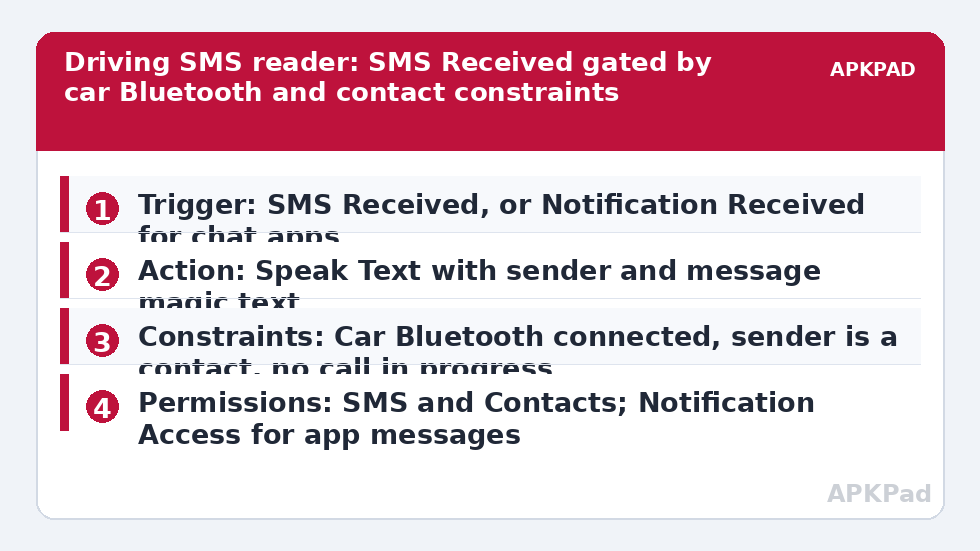
| Trigger | SMS Received (from Any Number, then narrowed by constraint, or From Contact / Selected Contacts directly in the trigger). For chat apps instead of SMS: Notification Received trigger with Notification Access, reading the notification text. |
| Actions | Speak Text using magic text for the sender and message body, e.g. “Message from [sender]. [message]”. Optional preceding action: Set Volume for the media or Bluetooth stream, and a short Vibrate or Play Sound lead-in so the first word is not lost. |
| Constraints | Bluetooth Device Connected constraint for your car, Sender Is a Contact constraint, Call State constraint set to No Call in Progress, Headphones / Bluetooth audio route check, Time of Day or MacroDroid driving Mode constraint if you use modes. |
Notice that the constraint layer does the safety work. The trigger alone would read every text all day, at your desk, in meetings, in bed. The constraints shrink that to a narrow, defensible window: in the car, from people you know, while you are not already on a call. When you test, test the constraints as deliberately as the speech, because a macro that reads correctly but at the wrong times is still a bad macro.
Building it, step by step
-
Add the SMS Received trigger. Leave the sender broad at trigger level and narrow it with the Sender Is a Contact constraint, which is easier to adjust later than a hard-coded contact list. If you only ever want family and one or two colleagues read aloud, selecting those contacts directly in the trigger is even tighter, and tighter is better here.
-
Add the Bluetooth Device Connected constraint and choose your car’s head unit or hands-free device. Pair the phone with the car first if it is not already a known device. This single constraint is your on-off switch for the entire system.
-
Add Speak Text. Compose the sentence with magic text for the incoming sender name or number and the SMS body. Keep a short lead-in phrase, because Bluetooth audio routes often clip the first fraction of a second while the car system wakes up. “New message.” followed by the sender gives the route time to open before anything important is spoken.
-
Choose the audio stream that actually reaches your ears in the car. For most head units that is the media / Bluetooth stream. If you drive with a wired or Bluetooth headset instead, test that route specifically, because a macro that speaks through the phone’s own speaker in a noisy cabin is a macro you will not hear.
-
Add a Set Volume action before Speak Text if your media volume is often low. Set it to a level you have tested as clearly audible over road noise while parked, no louder, and let a later macro or your normal routine restore your usual level if that matters to you.
-
Save, then test in a parked car with the engine and head unit on. Have someone send a contact message, a non-contact message, and a message while you are mid-call. You should hear only the first one. Fix any deviation now, not on the road.
How to read this: the estimate adds a small always-on idle cost for MacroDroid itself (about 0.4% of battery per day) to a per-class daily cost for each trigger type you use, scaled slightly by how many macros you run. These are planning estimates from that transparent model — not measurements from your phone. Use them to compare setups before you build, then confirm against the real numbers under Android Settings → Battery.
Permissions, including Notification Access for app messages
Plain SMS reading needs MacroDroid to hold SMS permissions, Receive SMS and Read SMS, plus Read Contacts so the sender constraint and spoken names work. If you extend the idea beyond SMS to WhatsApp or other messengers, MacroDroid cannot read those message bodies from the SMS system at all. Instead it needs Notification Access, granted by you, the device owner, in Android’s Notification Access settings, and a Notification Received trigger filtered to that app, with Speak Text reading the notification title and text. Grant that access only to MacroDroid, only because you asked for this feature, and understand its scope: Notification Access lets the holder read your notifications generally, which is why the contact and driving constraints matter even more for app messages than for SMS. Reading is restricted here to your own messages and your own contacts arriving on your own phone. This guide does not cover reading anyone else’s messages, bulk handling, or automated sending, and none of that belongs in a driving setup. No step needs root. No step needs the MacroDroid Helper app or an ADB grant for the SMS version. The notification version needs only the Notification Access toggle described above.
Why it stops working: background killing
The number one reason this macro fails is OEM battery management killing MacroDroid in the background. A frozen MacroDroid misses the SMS broadcast entirely, so the silence feels random: fine on short trips when the app is still warm from setup, absent on the long drive home. The fix is to exclude MacroDroid from battery optimisation in Android settings, then also enable autostart and unrestricted battery use in your OEM’s own battery menu, because brands including Samsung, Xiaomi, Oppo, and Vivo layer their own controls on top of stock Android. Do the parked test again after a full day of normal phone use, not immediately after changing the setting, so you know MacroDroid survived real background conditions. While you are in those menus, also confirm MacroDroid has not lost its SMS or Notification Access permissions to Android’s automatic permission reset for unused apps.
Passengers, privacy, and good manners
Spoken messages are public within the car. If you regularly carry colleagues or clients, add a MacroDroid Mode called Driving Private, enabled from a home-screen widget before you set off, with a Macro Mode constraint on the reader so nothing personal is announced in company. The goal was never to hear every word your phone receives. It was to hear the handful of messages that would otherwise tempt you to look down, and nothing else.
Frequently Asked Questions
Can MacroDroid read WhatsApp messages aloud, or only SMS?
Both, but by different routes. SMS uses the SMS Received trigger with SMS permissions. WhatsApp and similar apps have no SMS feed, so MacroDroid must use the Notification Received trigger with Notification Access granted by you, reading the notification title and body aloud under the same contact and car Bluetooth constraints.
How do I stop it reading messages from strangers and marketing senders?
Add the Sender Is a Contact constraint, or select specific contacts directly in the SMS Received trigger. Marketing numbers and unknown senders then fail the constraint and stay silent. For notification-based reading, filter the Notification Received trigger to the messaging app and keep the contact-style filtering as tight as that app allows.
Why does the first word of every message get cut off in my car?
Most car Bluetooth systems take a fraction of a second to open the audio route, clipping the start of speech. Add a short lead-in to your Speak Text sentence, such as “New message,” or place a brief Wait or Play Sound action before the speech, so the important words arrive after the route is fully open.
Why does it work on short trips but not on long drives?
That pattern usually means OEM battery management froze MacroDroid after the setup activity faded, so it missed later SMS broadcasts. Exclude MacroDroid from battery optimisation, allow autostart and unrestricted battery in the OEM menu, and retest after a day of normal use rather than immediately after adjusting settings.
Is it safe and legal to use this while driving?
The system is designed so you never touch or look at the phone while moving: set it up and test it while parked, and let it run unattended. Laws on phone interaction while driving vary by place, but a fully hands-free spoken alert that requires no interaction is the conservative end of the spectrum. If in doubt, check your local rules.