Your home router does not need Wi-Fi toggling by GPS. To setup wifi auto toggle cell tower macrodroid logic that survives indoors, use the masts your phone already talks to: when the serving cell changes to the towers near home, turn Wi-Fi on, and when you leave that set of towers, turn it off again. Cell-based switching is rougher than GPS, but it uses almost no extra power and works in flats, basements, and streets where location fixes drift.
Why setup wifi auto toggle cell tower macrodroid beats geofencing here
Geofencing sounds precise until you live in a dense block where your location jumps two streets while you are sitting on the sofa. Each jump can fire enter and exit events, toggling Wi-Fi pointlessly. Cell towers change far less often at home. You will normally see one primary tower and a couple of neighbours as signal conditions shift. Recording those cells over a day or two gives you a stable home fingerprint without running location all the time.
| Part | MacroDroid setting |
|---|---|
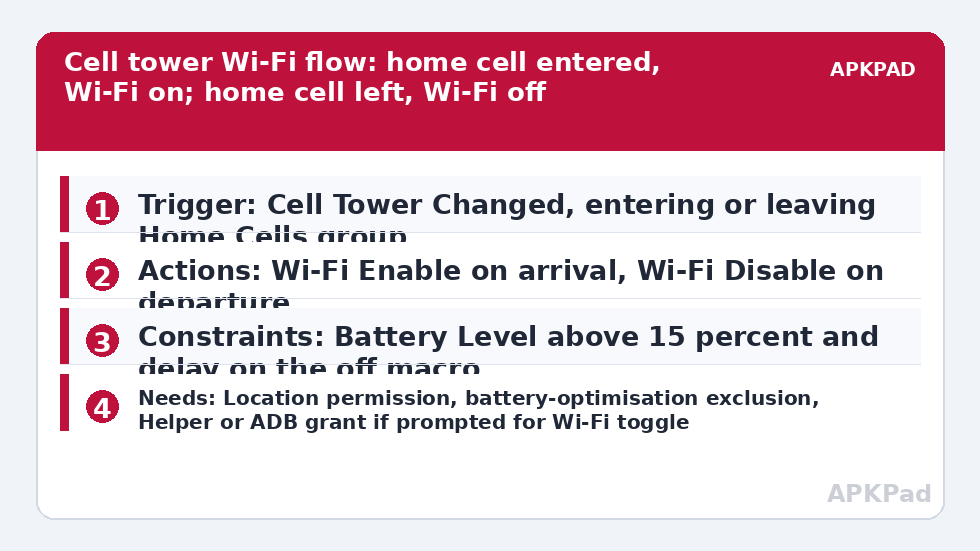
| Trigger | Cell Tower Changed (your recorded home cell group) to enter, and leaving that group to exit |
| Actions | Wi-Fi Enable/Disable: Wi-Fi Enable on entering home cells, Wi-Fi Disable on leaving |
| Constraints | Battery Level above 15 percent for the disable macro, and a delay or repeat check to avoid toggling on a brief tower handover |
Build two macros, not one. MacroDroid is clearer when Home Arrival and Home Departure are separate: one listens for entering your home cell group and enables Wi-Fi, the other listens for leaving and disables it. Trying to do both directions in a single macro with tangled conditions is how people end up with Wi-Fi turning off while they are still at home.
How to read this: the estimate adds a small always-on idle cost for MacroDroid itself (about 0.4% of battery per day) to a per-class daily cost for each trigger type you use, scaled slightly by how many macros you run. These are planning estimates from that transparent model — not measurements from your phone. Use them to compare setups before you build, then confirm against the real numbers under Android Settings → Battery.
Record your home cells properly
- Stay at home with Wi-Fi connected normally. Open MacroDroid, create a macro, add the trigger Cell Tower Changed, and use the option to scan and record the current cells. Save that group with a name like Home Cells.
- Use the phone normally for a day. Walk to different rooms, especially the rooms with weaker signal, and check whether MacroDroid logs additional cells. Add any new home cells you discover to the same group.
- Do the same short check at the places you visit most near home, such as the corner shop. If that shop shares exactly the same cell, accept that Wi-Fi may turn on there too, or accept a short delay before disabling so brief pass-bys do not matter.
Do not record cells while travelling and call them home. One wrong tower in the group means Wi-Fi will spring to life on a train route or at work, defeating the point and confusing your later debugging. Keep the group small, labelled, and reviewed.
Build the two macros
- Macro one, Home Wi-Fi On: Trigger Cell Tower Changed, entering your Home Cells group. Action Wi-Fi Enable. No other action is needed at first. Test this alone.
- Macro two, Home Wi-Fi Off: Trigger Cell Tower Changed, leaving your Home Cells group. Action Wi-Fi Disable. Add a Wait Before Next Action if your MacroDroid version and layout let you sequence a short delay before disabling, so a momentary handover to a neighbouring tower does not cut your connection mid-call or mid-download.
- Give both macros distinct names and enable MacroDroid’s log for a week. The log tells you which tower change fired and when, which is the only honest way to tune the group.
Permissions and system limits you need to know
- Location permission: Android requires location access for cell information and for Wi-Fi state changes on modern versions. Grant MacroDroid location permission, and set it to Allow all the time if MacroDroid asks, otherwise cell changes will not be reported reliably in the background.
- Nearby devices or phone state access may be requested depending on Android version. Grant what MacroDroid prompts for this trigger, and no more than you understand.
- Wi-Fi toggling limits: on some Android versions and devices, the Wi-Fi Enable/Disable action needs the MacroDroid Helper app, or an ADB permission grant, to work reliably. MacroDroid will tell you at the action step if that applies to your handset. Follow that prompt at that step, install the Helper only from MacroDroid’s own guidance, and test again. It does not normally need root.
If you use a work profile, remember that Wi-Fi state is device-wide, not profile-specific, while permissions are granted per profile. Test from the profile where MacroDroid is installed.
Avoiding the toggle loop at the edge of coverage
Every cell system has an edge. At yours, the phone may bounce between a home tower and an outside tower while you are in a garden, a stairwell, or a back room. Three defences help. First, include all genuine home towers, so the bounce stays inside the group. Second, add a delay to the off macro so short excursions do not disable Wi-Fi. Third, use a constraint on the off macro so it does not run if Wi-Fi is already carrying something you care about, such as an active call, if you have a reliable way to detect that state on your device. Do not stack so many constraints that the macro never runs; add one, observe for two days, then decide.
Readers who like location logic may also want the broader geofenced location triggers for smart home guide, which suits gates, lights, and arrivals better than cells do. For power-linked behaviour, compare this setup with automating cloud photo backups while charging, where the trigger is power, not place.
The failure that explains almost every report
The number one reason these macros fail is OEM battery management killing MacroDroid in the background. When MacroDroid is put to sleep by Samsung, Xiaomi, Oppo, Vivo, or similar manufacturer controls, it misses the Cell Tower Changed event entirely, so you arrive home and Wi-Fi stays off, or you leave and Wi-Fi stays on scanning all day.
Exclude MacroDroid from battery optimisation. Go to Android Settings, Apps, MacroDroid, Battery, and choose Unrestricted. Then apply your manufacturer’s own setting as well: remove MacroDroid from Sleeping apps on Samsung, set No restrictions and enable Autostart on Xiaomi, or allow background launch in your brand’s app-launch manager. Both layers matter, because fixing stock Android alone does not override the OEM layer. Restart, then do a real walk-away test: leave the street, watch Wi-Fi disable, return, and watch it enable. A test action inside the app cannot prove the background path works.
The wider Macro Triggers collection includes other place and power patterns, so keep names consistent if you clone this macro for a workplace cell group as a second pair.
Tuning after the first week
After a week, review which cells actually appeared in the log at home. Remove any cell that only appeared once during unusual network work if it causes false home detection elsewhere. If your carrier refarms towers or you change SIM or network, record the group again, because cell identities are tied to the network you are on. Dual-SIM users should test both SIMs: the serving cell MacroDroid sees may belong to the data SIM or the default call SIM depending on device behaviour, and the honest answer is to observe your own log rather than assume.
Finally, decide what this macro is for. If your goal is saving battery, Wi-Fi off away from home helps a little on most modern phones, but the bigger win is predictability: you stop finding Wi-Fi accidentally off at home during a large download, and you stop leaving it scanning in places where you will never connect. That predictability, not a dramatic battery claim, is the real value.
Frequently Asked Questions
Do I need GPS or location turned on for cell tower triggers?
MacroDroid needs location permission for cell information on modern Android, even though the trigger itself uses cell towers rather than GPS fixes. Grant location access, including background access if prompted, or cell changes may not be reported.
Why does Wi-Fi turn on when I am near home but not at home?
A nearby shop or street may share the same serving cell as your home. That is a limit of cell precision. Remove that cell only if home still works without it, add a delay to the off macro, or accept the overlap if it is harmless.
Does the Wi-Fi toggle action need the Helper app or root?
On some devices and Android versions the Wi-Fi Enable/Disable action needs the MacroDroid Helper app or an ADB permission grant, which MacroDroid will prompt for at that step. It does not normally need root.
Why did the macro work yesterday and stop today?
Most often OEM battery management put MacroDroid to sleep after an update or a battery-saving prompt. Set MacroDroid battery use to Unrestricted, check your manufacturer’s sleeping apps or autostart list, and test with a real arrival and departure.