Your podcast should come out of the Bluetooth speaker in the kitchen. Your navigation should come out of the phone, loudly, even while music plays through the car. A voice note you tap in a quiet office should absolutely not erupt from the speaker you forgot was connected in the next room. Android routes audio by stream and by connected device, largely on its own logic, and for multi-device lives that logic is wrong often enough to be embarrassing. This guide tackles per app audio output routing macrodroid style — with the limits stated up front, because this is the request where honesty matters most in the whole batch: Android gives apps, not users, the final say over their own audio output, and what automation can do is arrange the conditions, per app, so the right route is the one each app naturally picks.
How per app audio output routing macrodroid automation actually works
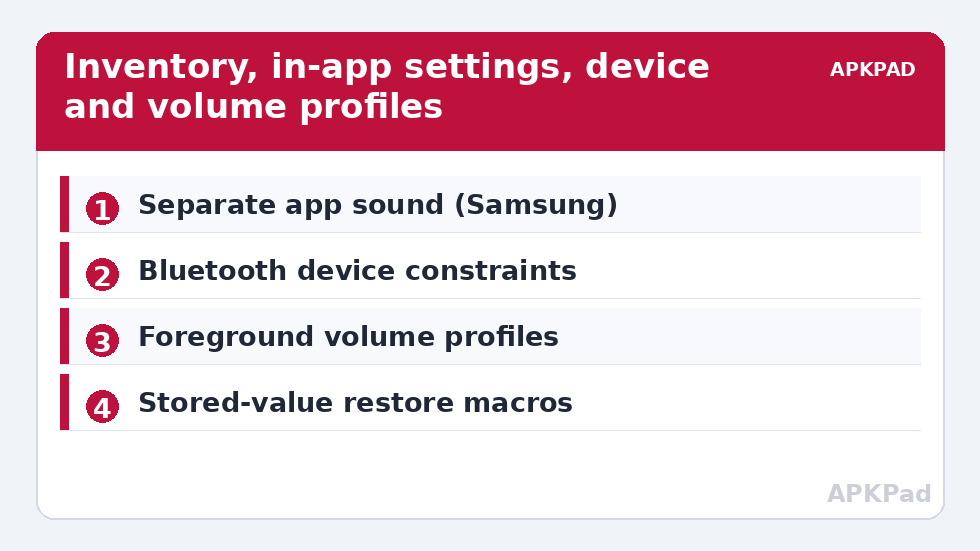
Understand the platform first. On modern Android there is no public API by which one app can command another app to play through a specific device. An app chooses its output using the audio APIs, influenced by the stream it uses (media, call, notification, alarm), the devices currently connected, and its own preferences. A minority of phones — Samsung most notably, with its “Separate app sound” feature — offer genuine per-app output assignment at system level. If you own such a phone, your per-app routing lives there, and this article’s MacroDroid layer simply manages when Bluetooth devices connect and disconnect around it. On every other phone, the automation strategy is indirect but effective in practice:
- Control the device landscape per app: connect or disconnect (or leave alone) the Bluetooth audio device depending on which app is in the foreground, so the app’s own routing lands where you want.
- Control the stream volumes per app: an app you cannot re-route can at least be made quiet on the wrong output and normal on the right one, combining launch-triggered volume profiles with device-connected constraints.
- Exploit per-device and per-app settings inside the apps themselves: several media and navigation apps have their own “play voice over Bluetooth / as phone call / on speaker” options. Setting those, once, outperforms any macro.
How to read this: the estimate adds a small always-on idle cost for MacroDroid itself (about 0.4% of battery per day) to a per-class daily cost for each trigger type you use, scaled slightly by how many macros you run. These are planning estimates from that transparent model — not measurements from your phone. Use them to compare setups before you build, then confirm against the real numbers under Android Settings → Battery.
Permissions and realistic expectations
Bluetooth toggling from MacroDroid historically needed only normal permissions; newer Android versions restrict programmatic Bluetooth changes — since Android 13, apps can no longer toggle Bluetooth on/off freely in many cases, and MacroDroid may instead open the Bluetooth settings or use a Helper/shell route on some builds. Test what your phone allows before designing around silent toggles. Adjusting stream volumes needs no special grant; changing them while Do Not Disturb is active needs DND access. Nothing here needs WRITE_SECURE_SETTINGS, which puts this guide at the gentler end of the System Tweaks spectrum — related muscle memory from controlling vibration for specific app notifications applies directly, because both are about per-app sensory behaviour: what may make noise, where, and when.
Step 1: inventory your outputs and your problem apps
- List your audio devices: phone speaker, earbuds, kitchen speaker, car head unit, watch (for calls), hearing aids if applicable.
- List your mismatch stories, not apps in the abstract: “navigation swallowed by the car’s quiet media channel”, “podcast app grabbed the earbuds I use for calls”, “game blasted the living-room speaker”.
- For each story, check the app’s own settings first for an output or channel option (navigation apps and podcast apps are the most likely to have one; Samsung owners check Separate app sound now and may finish the job entirely here).
- Whatever remains after in-app settings is your MacroDroid workload — typically device management and volumes, which the next steps build.
Step 2: the “quiet room” pattern — keep one app off the big speaker
Worked example: your messaging app’s voice notes and call tones should never use the living-room Bluetooth speaker, while music should.
- Anchor to the device: MacroDroid can detect Bluetooth connection state and often the specific device. Build the profile around the device: living-room speaker connected AND messaging app in the foreground…
- Action: set media and call-related stream volumes for the session to a low, defined level (store prior values first, as always).
- Restore macro: Application Closed for the same app restores the stored volumes, constrained to the speaker still being connected.
- Accept the boundary: the audio may still route to the speaker, at low volume. On a non-Samsung phone that “inaudible in practice” outcome is often the best available — and for the office-embarrassment case it fully solves the human problem.
Step 3: the “car” pattern — navigation prominent, media through the car
- Trigger: Bluetooth device connected (your car), rather than app launch — the car context is the anchor.
- Actions: set media volume to your tested car level; if your navigation app offers “play as Bluetooth phone call” in its settings, enable it there once (that HFP channel cuts through car media behaviour in a way no volume macro can imitate).
- Companion trigger: car disconnected → restore home volume profile. This pairs naturally with launcher-switching in the car; the category’s launcher guide builds the visual half of the same context.
- If you use the reading mode at home in the evening, keep its quiet assumptions separate from the car profile — contexts stacked carelessly fight, contexts scoped by device do not.
Step 4: the “earbuds are for calls” pattern
Set desk media apps to a moderate stored volume when earbuds connect — and let the sibling guide to charging LED behaviour by time of day remind you not every signal needs to be sound. Where your build supports a Bluetooth connect action toward a known device, “music app opens → request speaker connection” becomes possible; where it does not, a one-tap Quick Settings tile achieves the same human result. The whole toolkit is linked from the APKPAD homepage.
The honest capability table
| Goal | Samsung with Separate app sound | Other Android phones |
|---|---|---|
| App A always to speaker, App B always to phone | Yes, natively, per app | No true routing; approximate with device + volume control per app |
| Navigation over car media | Yes, plus in-app HFP option | In-app “play as phone call” option where offered |
| Keep an app quiet on a shared speaker | Route it to phone instead | Per-app foreground volume profile (this guide) |
| Auto-connect a chosen speaker when an app opens | Build-dependent | Build-dependent; tile fallback always works |
Troubleshooting
- Volumes restore to the wrong level: a second profile changed them between save and restore. Scope every pair with the same device constraint so profiles cannot interleave.
- Bluetooth toggle action does nothing on Android 13+: platform restriction, not a macro error. Use the settings-opening or tile-assisted route, or a Helper route if your build supports it, and re-test after updates since this area keeps changing.
- The app ignores everything and uses the speaker anyway: some apps hold audio focus aggressively (games, call apps). That is the platform boundary above; mitigate with volume, or on Samsung use Separate app sound.
- Navigation is inaudible in the car despite high media volume: the car may scale the navigation channel separately. Test the app’s HFP/phone-call output option; cars prioritise the call channel.
- Restore macro missed because the app was swiped away: add a device-disconnect restore as a backstop, so leaving the car or speaker range returns volumes to the home profile.
Undo
Disable the profile macros, delete any Separate app sound assignments (Samsung), and reset stream volumes by hand. Routing returns to Android’s defaults because nothing here rewired it: the design arranged conditions, and removing the arrangement removes the behaviour.
Frequently Asked Questions
Can MacroDroid force an app to play through a specific speaker?
On most phones, no — Android lets each app choose its own output, and there is no general API for another app to override that choice. Samsung’s Separate app sound is the notable system-level exception. Elsewhere, MacroDroid manages which Bluetooth devices are connected and the per-app volume profiles, which achieves the practical result in most everyday cases.
Why does my navigation app get quiet in the car while music stays loud?
Cars often treat media and guidance channels differently, and the app may be using the media stream at a level the head unit scales down. Enable the navigation app’s own option to play voice prompts as a Bluetooth phone call if it offers one — the call channel is prioritised by most car systems.
Why won’t MacroDroid toggle Bluetooth on my newer Android version?
Android has progressively restricted programmatic Bluetooth control; since Android 13 many builds no longer let apps toggle it silently. MacroDroid may open the Bluetooth settings instead, or need a Helper route on supported builds. Test your phone’s behaviour rather than assuming a toggle works.
What is the best I can do for an app that must never use the living-room speaker?
On Samsung, assign it to the phone in Separate app sound. On other phones, build the foreground volume pattern from this guide: when that speaker is connected and the app opens, drop its streams to a stored low level, restoring them when the app closes. The sound may still route there technically, but at a level that solves the real-world problem.
How do I keep several audio profiles from fighting each other?
Anchor each profile to a distinct condition — a specific Bluetooth device, a place, or an app — and make every save-and-restore pair share the same constraints. Profiles anchored to the car, the earbuds and the living-room speaker cannot interleave if each checks its own anchor before acting.