Your macro taps perfectly while the phone is unlocked, then does nothing at the lock screen. To fix UI interaction failure lock screen cases properly, separate two different failures first. If MacroDroid never runs at all, you have a trigger or battery problem. If the macro runs, appears in the log, but the tap, swipe, or text entry does nothing, the lock screen itself blocked the action — and that block is deliberate Android security, not a bug you can toggle away with one setting.
Reproduce it cleanly before changing anything. Lock the phone, wait thirty seconds so the keyguard fully settles, then fire the trigger once. Note the exact time. Open MacroDroid, go to the left drawer, open System Log, and look for your macro at that timestamp. A log entry with “UI Interaction” listed and no error means MacroDroid attempted the action. No log entry at all means stop here — the macro never fired, and this article’s later steps will not help until the trigger itself works with the screen off.
Ordered Cause Tree for a Blocked Tap
Work this tree in order. Each cause is more likely than the one below it, and the fixes get progressively more intrusive, so do not skip ahead to accessibility resets or ADB grants until the simpler layers are cleared.
- Secure lock screen active: PIN, pattern, password, or biometrics are engaged, and the target app or surface sits behind the keyguard. Accessibility-driven taps cannot interact with most content behind a secure keyguard.
- Show over lock screen not granted: MacroDroid or the target app lacks permission to appear over the lock screen, so the UI it needs to tap is never rendered.
- Accessibility service restricted or paused: UI Interaction actions depend on MacroDroid’s accessibility service. If that service is off, restricted after an update, or killed by the OEM battery manager, every tap silently fails.
- Wrong display state: The macro fired while the screen was off rather than locked-and-on. UI Interaction needs a lit display; a tap queued against a dark screen is discarded.
- OEM lock screen customisation: Magazine lock screens, glance panels, and vendor lock screen widgets intercept touches or redraw the surface, shifting the coordinates your tap was recorded against.
The distinction between causes one and three matters most. Cause one is Android working as designed — the fix is redesigning the macro. Cause three is a broken permission state — the fix is restoring the service. Confusing the two wastes hours re-granting permissions to a phone that was never going to allow the tap in the first place.
Fix UI Interaction Failure Lock Screen Problems, Safest First
Step 1: Wake and Light the Screen Before the Tap
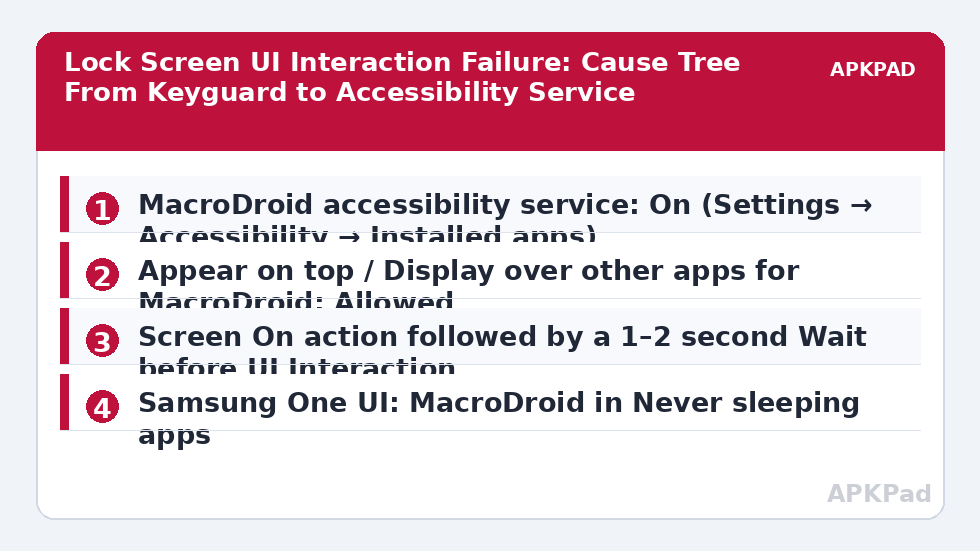
Add a Screen On action at the start of the macro, followed by a Wait of one to two seconds, and only then the UI Interaction action. The wait is not superstition — the keyguard and the underlying app need a frame or two to render after wake, and a tap issued in the first instant lands on a surface that does not exist yet.
Step 2: Confirm the Accessibility Service Is Actually Running
Open MacroDroid, tap the Accessibility tile on the home screen if present, or go to Android Settings and check the service state directly. The exact paths differ by brand:
| Brand | Path to accessibility settings | What to check |
|---|---|---|
| Pixel (stock Android) | Settings → Accessibility → Installed apps → MacroDroid | Toggle is On; if greyed out, open App info → ⋮ → Allow restricted settings first |
| Samsung One UI | Settings → Accessibility → Installed apps → MacroDroid | Toggle is On; also check Settings → Battery → Background usage limits → Never sleeping apps includes MacroDroid |
| Xiaomi MIUI / HyperOS | Settings → Additional settings → Accessibility → Installed services → MacroDroid | Toggle is On; then Settings → Battery → MacroDroid → No restrictions |
| Oppo / Realme ColorOS | Settings → Additional settings → Accessibility → Installed apps → MacroDroid | Toggle is On; then App management → MacroDroid → Battery usage → Allow background activity |
If the toggle was on but taps still fail, turn the service off, wait ten seconds, and turn it back on. That restarts the service binding without touching your macros. Related behaviour — the service turning itself off again days later — is covered in our guide to fixing the accessibility service turning off, which deals with the OEM side of the same problem.
Step 3: Grant Display Over the Lock Screen Where the Design Needs It
Some macros legitimately need a visible surface at the lock screen — for example, pressing a floating button to confirm an action. Check Settings → Apps → MacroDroid → Appear on top (called Display over other apps on some skins) and confirm it is allowed, then test whether the floating button overlay survives the lock screen on your device. This permission lets MacroDroid draw; it does not unlock anything, and it does not let taps pass through a secure keyguard into an app behind it.
Step 4: Redesign Macros That Truly Need an Unlocked Phone
If the target genuinely sits behind a secure lock — banking apps, payment confirmations, work profile content — stop trying to tap through it. Redesign instead: use the lock screen macro to post a notification or speak a prompt, and run the UI Interaction sequence from a second macro triggered by Device Unlocked. That split is slower by the time it takes you to unlock the phone, and it is the only version of this design that works reliably on a current Android build. Macros that promise to auto-enter a PIN by tapping the keyguard are fragile, break with every OEM update, and are not a design this site recommends.
How to read this: the estimate adds a small always-on idle cost for MacroDroid itself (about 0.4% of battery per day) to a per-class daily cost for each trigger type you use, scaled slightly by how many macros you run. These are planning estimates from that transparent model — not measurements from your phone. Use them to compare setups before you build, then confirm against the real numbers under Android Settings → Battery.
Verification: Prove the Tap Lands
Do not declare this fixed because a setting changed. Build a throwaway test macro: trigger it manually, add Screen On, Wait two seconds, then a UI Interaction action that taps a harmless, visible lock screen target such as the clock area opening nothing sensitive, followed by a Speak Text or Vibrate action as an audible marker. Lock the phone, run the test from a widget or a time trigger one minute ahead, and watch the result. Then open the System Log and confirm three things in order: the test macro fired at the expected time, the UI Interaction action executed without an error line, and the marker action ran after it. If the log shows the tap executed but nothing visibly happened, the keyguard intercepted it — you are back at cause one, and the redesign in Step 4 is your answer. Broader log-reading method is in the complete troubleshooting guide for MacroDroid triggers, and this article sits in our Fixes & Errors category alongside the rest of the series.
When This Fix Won’t Work
Honestly: if your phone uses a secure lock and the content you want to tap lives behind it, no permission, helper app, or battery exemption changes that. Android’s keyguard is designed to defeat exactly this, and each major version narrows the exceptions. Work-profile apps, banking apps with their own FLAG_SECURE surfaces, and devices under company MDM policy add a second lock layer MacroDroid cannot see past. On those devices the unlocked-phone redesign is not a fallback — it is the only supported path, and any tool claiming otherwise is asking you to weaken the lock that protects everything else on the phone.
Frequently Asked Questions
Why does UI Interaction work unlocked but fail on the lock screen?
Because a secure lock screen is a separate, protected surface. Accessibility taps that work on an unlocked display are blocked or redirected by the keyguard, so the macro runs but the tap never reaches the app underneath. Waking the screen and allowing display over the lock screen helps only for surfaces Android permits there.
Can MacroDroid unlock my phone automatically with UI Interaction?
No reliable method exists on current Android versions. Tapping a PIN or pattern on the keyguard is specifically restricted, breaks with OEM updates, and risks lockout after repeated failed attempts. The dependable pattern is a prompt at the lock screen, then the interaction macro triggered by Device Unlocked.
MacroDroid’s accessibility service shows On, so why do taps still fail?
The toggle can show On while the service binding is stalled, especially after updates or aggressive battery management. Turn the service off, wait ten seconds, and turn it back on, then retest with the System Log open. Also confirm the screen is actually lit when the tap fires, because taps against a dark screen are discarded.
Does giving MacroDroid “Appear on top” fix lock screen taps?
Only partly. That permission lets MacroDroid draw its own overlays, such as a floating button, over the lock screen. It does not grant access to apps behind a secure keyguard, so it fixes missing overlays, not blocked taps into locked content.
Will removing my PIN make UI Interaction work at the lock screen?
Technically a swipe-only lock removes most keyguard blocking, but it also removes the protection on your accounts, payments, and messages if the phone is lost. We do not recommend it. Redesign the macro to run after unlock instead of weakening the lock for one automation.