Every phone accumulates the same sediment: a parking app that got location access in 2023, a festival app with contacts permission, a scanner with storage rights it needed exactly once. Android has quietly built three separate mechanisms for stripping those grants back, and MacroDroid can schedule and supervise all of them. This guide shows how to automate app permission revocation for inactive background tools — what the OS already does on its own, what AppOps adds, and what a macro can realistically enforce. It also draws the safety lines clearly, because permission tooling aimed carelessly breaks apps you actually need.
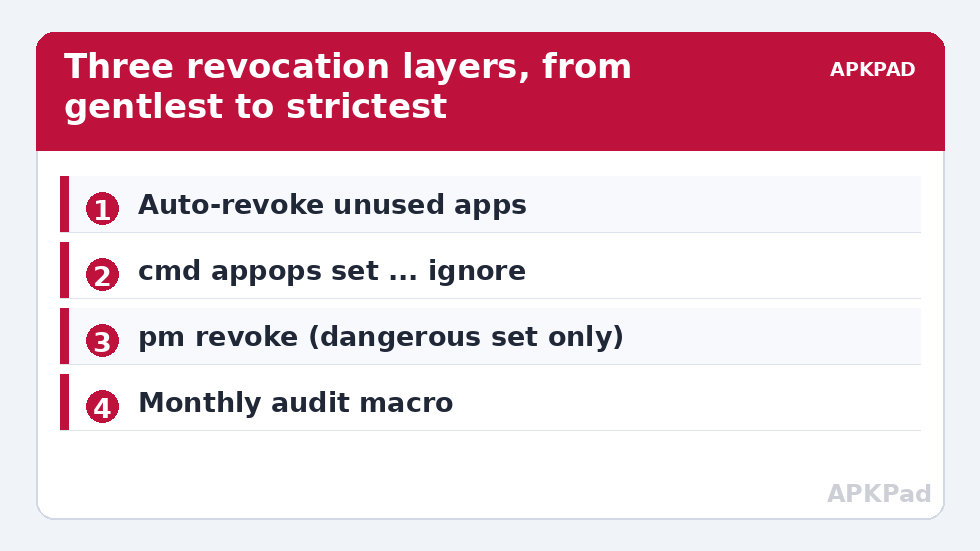
Layer one: Android already revokes — turn it on and aim it
Since Android 11, the system automatically revokes runtime permissions (location, microphone, camera, contacts and similar) from apps you have not opened in a few months, and hibernates them. Check it is working for you:
- Settings → Apps → Unused apps — review what has already been stripped and hibernated.
- For any individual app: Settings → Apps → app → “Pause app activity if unused” (wording varies) — make sure it is ON for every app you do not use weekly.
- Equally important: turn it OFF for your automation stack. MacroDroid and its Helper must be exempt, or the system will eventually revoke the very permissions your macros run on. The same exemption logic applies to apps discussed in fixing battery-optimisation exclusions resetting — different system, same principle: protect the infrastructure first.
This layer needs no macro. Your automation’s job is to audit it, which is where layer three comes in.
Layer two: AppOps — the quiet middle ground
Between “granted” and “revoked” sits AppOps, Android’s per-app operation control. Setting an op to ignore means the app keeps its permission on paper but receives empty or dummy data in practice — a location request returns nothing, without the app necessarily knowing it was refused. From an ADB shell (and from MacroDroid’s Helper-based shell, within its privileges):
adb shell cmd appops set com.example.parking android:coarse_location ignore
Restore with the same command ending in allow. Full runtime-permission revocation from the shell uses pm:
adb shell pm revoke com.example.parking android.permission.ACCESS_COARSE_LOCATION
And re-granting is pm grant with the same permission name. The commands are precise and totally reversible — which does not make them safe to spray broadly, as the next section explains.
How to read this: the estimate adds a small always-on idle cost for MacroDroid itself (about 0.4% of battery per day) to a per-class daily cost for each trigger type you use, scaled slightly by how many macros you run. These are planning estimates from that transparent model — not measurements from your phone. Use them to compare setups before you build, then confirm against the real numbers under Android Settings → Battery.
Automate app permission revocation for inactive tools: the audit macro
MacroDroid cannot enumerate “apps unused for 90 days” with one tidy action, so build the workflow around a maintained list — which is better security practice anyway, because you decide the targets:
- Maintain a watchlist: a MacroDroid string variable (or a text file) holding package names you consider “seasonal tools” — parking, travel, event, and scanner apps.
- Monthly trigger: Day/Time trigger, first Sunday of the month, 10:00.
- Audit actions: for each watchlist package, a Shell Script action runs
cmd appops get <package>anddumpsys package <package>excerpts into a log file, so you can see what is currently allowed. - Act: apply
cmd appops set ... ignorefor location and background-location ops on the whole watchlist. Apps you open again will either work with dummy data or prompt you to re-grant — a natural review moment. - Notify: a summary notification listing what was restricted, with the log file path. Automation that changes security state must always announce itself.
Keep the macro’s scope to ops that degrade gracefully (location is the model case). Revoking storage or notification permissions by script tends to produce confusing app behaviour rather than clean prompts. For the boot-time verification pattern that complements this monthly audit, see automated ADB command execution at startup.
The do-not-touch list
| Never restrict this way | Why |
|---|---|
| MacroDroid and its Helper | Your automation infrastructure; revoking breaks every macro silently |
| System packages (com.android.*, telephony, systemui) | AppOps changes here can destabilise core functions and are often blocked anyway |
| Your launcher and default dialler/SMS apps | Role-holder apps misbehave unpredictably when ops are ignored |
| Work-profile / MDM-managed apps | Admin policy owns these permissions; your changes will be reverted or flagged |
| Anything mid-use | Revoking from an app you are actively relying on (a trip in progress) is self-sabotage; the monthly cadence exists to avoid this |
One more nuance: pm revoke on a permission an app considers essential can put it into a crash-or-prompt loop at next launch. That is recoverable — re-grant from Settings → Apps → app → Permissions — but it is why this guide steers you to AppOps ignore as the default instrument and reserves full revocation for apps you are certain about.
Undo: restoring any restriction
Every mechanism here reverses cleanly. AppOps: re-run the command with allow. Full revocation: re-grant in the app’s Permissions screen or with pm grant. Auto-revoke exemptions: the “Pause app activity if unused” toggle. If you lose track of what you changed, the monthly audit log is your ledger — one more reason the macro writes it. The complete toolbox behind these commands is in the ADB cheat sheet, and the rest of the system tweaks category follows the same record-everything discipline.
Background location: the one op that deserves its own paragraph
If the watchlist system restricts only one thing, make it background location. Foreground location — the app sees where you are while you use it — is how maps, ride-hailing, and weather earn their keep. Background location is how a parking app knows where you live. Android already separates them: since Android 11, apps must request “Allow all the time” as a distinct, settings-screen-only decision, and one-time and while-in-use grants exist precisely to starve the background case. In AppOps terms, watch both android:fine_location/android:coarse_location and their background counterparts, and in your monthly review, treat any non-navigation app holding background location as a finding to justify or to ignore-op. The manual equivalent — opening each app’s permission screen and choosing “Allow only while using the app” — achieves the same posture with no shell at all, and for a short watchlist it is honestly competitive with the macro. Automate when the list grows, not before.
What the audit log should contain
Make the monthly log boringly consistent — one line per app per run, fields in a fixed order: date; package; ops checked; ops found allow; action taken (none or the op set to ignore); and a free-text note slot you actually use (“reinstalled for a trip — expected”). A log in that shape answers, months later, the only questions that matter: what could this app do before the run, what can it do now, and was the change deliberate? Sample line: 2026-10-04 | com.example.parking | loc:fine=allow,coarse=allow,bg=allow | set bg→ignore | first run. Anything fancier is a database cosplaying as a text file; anything less and you will eventually restrict something, forget, and blame the app for “breaking”. Keep the log beside the boot log from the startup-automation guide, and your phone’s security posture becomes something you can read, not something you believe.
Frequently Asked Questions
Doesn’t Android already do this automatically?
Partly. Android 11+ auto-revokes permissions from long-unused apps and hibernates them — if the per-app toggle is enabled. What it does not do is apply the softer AppOps restrictions on a schedule you control, or audit and report. The macro supplements the built-in feature; it does not replace it.
What is the difference between AppOps ignore and revoking?
Revoking removes the permission; the app sees it was denied and usually asks again. AppOps “ignore” leaves the permission granted on paper but feeds the app empty results (for example, no location). Ignore is gentler and breaks fewer apps; revoke is cleaner for apps you are sure about.
Can MacroDroid do this without the Helper or ADB?
Not the shell operations. AppOps and pm commands need shell-level privileges, which on an unrooted phone means the Helper with the ADB grant applied. The built-in Android auto-revoke layer, by contrast, needs no tooling at all — start there.
Will restricting an app break it permanently?
No. Every restriction in this guide is reversible in seconds, and the worst realistic outcome is an app asking for its permission again or showing empty data until you set the op back to allow.
How do I find a package name for my watchlist?
MacroDroid can show it: many app-selection pickers display the package, and from ADB, adb shell pm list packages | grep name finds it. Long-pressing the app in some launchers also reveals it under App info.