When you need to create auto reply sms whatsapp macrodroid workflows for your own phone, start with one honest limit: SMS replies are native and reliable, while WhatsApp replies only work through the notification that WhatsApp itself shows. Build both inside one clean macro, add a time constraint so you are not replying at 3 p.m. from your desk, and you will stop missing urgent messages when you are driving, in a meeting, or simply away from the screen.
This guide is strictly for your own accounts and your own contacts. Do not use it for spam, bulk messaging, unsolicited marketing, or any attempt to evade messaging-platform rules. Send replies only to people who already know you, keep the text personal and specific, and stop the macro if a contact asks you not to automate replies to them.
How to create auto reply sms whatsapp macrodroid macros without loops
The biggest design mistake is a reply loop. If two phones both auto-reply, they can ping each other forever. MacroDroid avoids that risk when you add constraints, a cooldown, and a contact check. You will build the SMS version first, test it with a second phone belonging to you or a family member who has agreed to help, and only then add the WhatsApp notification version as a separate macro. Keep the two macros separate. When something breaks, you will know which channel failed.
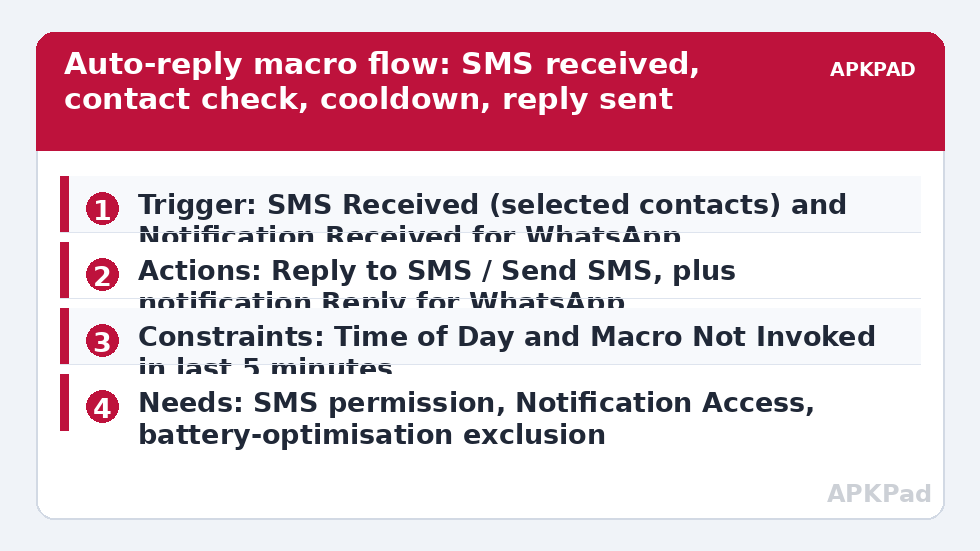
| Part | MacroDroid setting |
|---|---|
| Trigger | SMS Received (selected contacts or any contact, as you choose) for SMS; Notification Received from WhatsApp for WhatsApp |
| Actions | Reply to SMS / Send SMS with your auto-reply text; for WhatsApp, Reply action on the notification |
| Constraints | Time of Day, Macro Not Invoked in the last 5 minutes for this contact flow, and Screen Off or Driving mode if you use one |
Open MacroDroid, tap Add Macro, and name it something you will recognise in the log, such as Away Auto Reply SMS. A clear name matters later when you are hunting through twenty macros.
How to read this: the estimate adds a small always-on idle cost for MacroDroid itself (about 0.4% of battery per day) to a per-class daily cost for each trigger type you use, scaled slightly by how many macros you run. These are planning estimates from that transparent model — not measurements from your phone. Use them to compare setups before you build, then confirm against the real numbers under Android Settings → Battery.
Build the SMS auto-reply step by step
- Add the trigger SMS Received. Choose Selected Contacts if this is for family and close colleagues, or Any Contact if you run a small business from this number and have told customers you may reply automatically outside hours. Selected Contacts is safer for most people.
- Add the action Reply to SMS. If Reply to SMS is not available on your device, use Send SMS and insert the incoming number variable so the reply goes to the sender, not a fixed number.
- Write a short, specific text: mention that it is automatic, when you will read the message properly, and how to reach you in a real emergency. Example wording: Thanks for your message, I am away from my phone until this evening and will reply properly then. If it is urgent, please call.
- Add a constraint Macro Not Invoked. Set it to at least five minutes, ideally longer. This is your loop protection.
- Add a Time of Day constraint if the macro is only for evenings, work hours, or a holiday period. Do not leave an away reply running all week by accident.
Save and test it. Send an SMS from another phone, then send a second straight away. The second should not trigger a reply inside the cooldown. If it does, your constraint is on the wrong macro or too short. Fix that before enabling WhatsApp.
The WhatsApp version: notification-based, not an API
MacroDroid does not plug into WhatsApp through an unofficial API, and you should not use mods or third-party WhatsApp automation tools that claim to do so. Those tools put your account at risk and often break without warning. The supported route is notification-based reply, and it only works when a WhatsApp notification actually appears.
- Create a second macro. Add the trigger Notification Received, select WhatsApp as the application, and set the text filter to Any if you want all chats, or match a contact name if you only want specific people.
- Add the Reply action that MacroDroid offers for that notification. The reply is typed into the notification’s own reply field, exactly as if you had tapped Reply yourself.
- Add the same cooldown and time constraints as the SMS macro, plus a constraint that the notification is from a single chat, not a group, if you want to avoid replying automatically in group conversations. Group auto-replies annoy people quickly.
This method fails silently if WhatsApp notifications are muted for a chat or if notification categories hide message content. Check WhatsApp and Android notification settings before blaming MacroDroid, and always test with your own second account or a willing contact.
Permissions this macro actually needs
- SMS permission: MacroDroid needs Send SMS and Read SMS access to detect and reply. Android will prompt when you first save the action.
- Notification Access: required for the WhatsApp Notification Received trigger and its Reply action. Grant it in Android Settings, Apps, Special app access, Notification access, MacroDroid.
- Contacts permission: needed if you use Selected Contacts in the trigger.
- Ignore battery optimisation: see the troubleshooting section below, this is not optional.
This macro does not normally need the MacroDroid Helper app, device admin, or root. If MacroDroid prompts for the Helper for a specific action on your handset, install it from MacroDroid’s own guidance and re-test.
Constraints that keep the reply polite
A good auto-reply is defined by when it does not send. If the screen is on and WhatsApp is in the foreground, you do not need one. The Macro Triggers category collects these patterns, and two companion guides are especially relevant here: learning to auto-read SMS notifications aloud while driving for hands-free awareness, and using an auto-reject during calendar meetings setup so calls and messages follow the same away logic.
Keep a log. MacroDroid’s user log shows when a macro ran and whether a constraint blocked it. After the first day, read it once and narrow the contact list if replies went wider than intended.
Why it stops working, and the fix that matters most
The number one reason this macro fails is OEM battery management killing MacroDroid in the background. Samsung, Xiaomi, Oppo, Vivo and other manufacturers apply aggressive app sleeping rules that go beyond stock Android. The macro looks correct, the trigger is correct, and nothing happens because MacroDroid was never awake to see the message.
Fix it directly. Open Android Settings, Apps, MacroDroid, Battery, and set it to Unrestricted, which excludes MacroDroid from battery optimisation. Then check your manufacturer’s own controls: on Samsung, remove MacroDroid from Sleeping apps and Deep sleeping apps; on Xiaomi, set Battery saver to No restrictions and enable Autostart for MacroDroid; on other brands, find the autostart or app launch setting and allow MacroDroid to run in the background. Restart the phone once and test again with a real incoming message, not just MacroDroid’s test action, because the test action bypasses the background problem you are trying to prove is gone.
If SMS replies work but WhatsApp replies do not, the battery fix is probably not the cause. Recheck Notification Access, confirm WhatsApp notifications are not set to silent, and confirm the notification contains a Reply button. If a chat is muted in WhatsApp, no notification appears, so no trigger can fire. That is expected behaviour, not a MacroDroid bug.
Refinements once the basics are stable
Add a variable for the sender’s name if you want a warmer tone, but keep the word automatic in the text. Test in both profiles if you use a work profile, because permissions are per profile. For urgent people, the guide to smart notification sound triggers for priority contacts shows how to let them break through with sound while this macro handles everyone else with text.
Review the macro monthly. Away messages go stale, and a holiday reply still running in a normal week confuses everyone.
Frequently Asked Questions
Can MacroDroid auto-reply to WhatsApp without Notification Access?
No. The WhatsApp method in this guide works through the notification WhatsApp shows, so Notification Access is required for the Notification Received trigger and its Reply action. There is no native WhatsApp auto-reply API used here, and unofficial mods should be avoided.
Why did my auto-reply send twice to the same person?
Usually the cooldown constraint is missing or set on the wrong macro, or you have both an SMS macro and a duplicate test macro enabled. Disable duplicates, keep one macro per channel, and set Macro Not Invoked to at least five minutes.
Will this work for group WhatsApp chats?
It can, because group messages also produce notifications, but it is rarely a good idea. Add a constraint or text filter to limit replies to individual chats unless you have a clear, agreed reason to reply automatically in a group.
Does this macro need root or the MacroDroid Helper app?
Normally no. SMS reply and notification reply work without root. If your specific handset prompts for the Helper app for an action, follow MacroDroid’s own Helper guidance for that action and test again.
Is it allowed to use this for business bulk messaging?
No. Use it only for your own accounts and contacts, for personal or small-scale replies to people who know you. Do not use it for spam, bulk messaging, or to evade messaging-platform rules.