Plug phone into laptop, open Settings, find tethering, toggle, wait — a small ceremony repeated daily by people who tether at a desk. Automating it sounds trivial and is not: Android treats tethering as a privileged function precisely because it shares your connection and drains your battery, so the toggle sits behind system control. This guide covers configuring USB tethering auto-enable so it fires the moment a PC cable is connected — the routes that genuinely work, the one that needs the ADB-hacked Helper, and the safety thinking that should accompany any of it.
Why there is no simple settings key
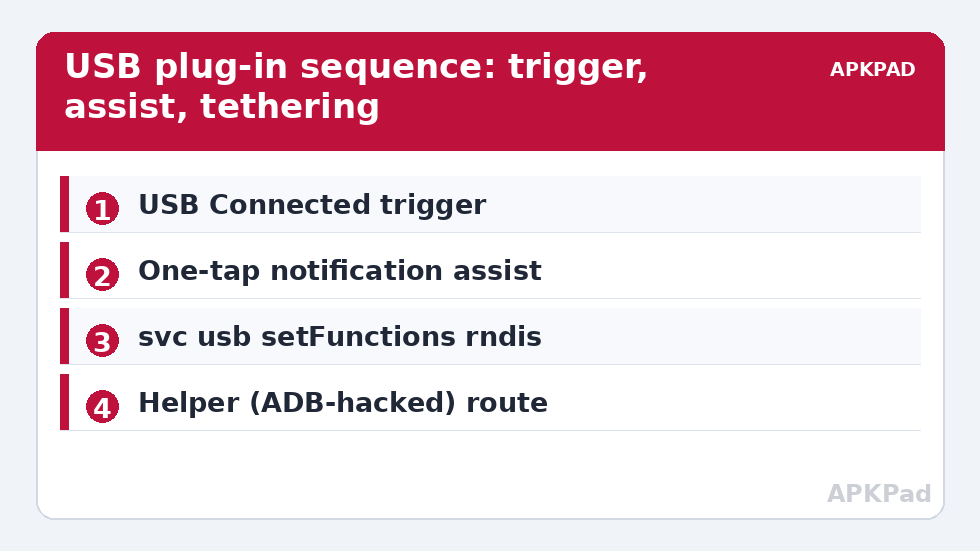
Most tweaks in this category reduce to a settings value. Tethering does not. There is no settings put key that enables USB tethering; it is controlled through the connectivity service, gated behind privileged permissions (TETHER_PRIVILEGED / WRITE_SETTINGS-level access held by system components). An ordinary app, MacroDroid included, cannot flip it directly. What automation can do, by setup tier:
| Setup | Route | Reliability |
|---|---|---|
| Stock, unrooted | Macro detects USB connection → opens the tethering settings screen (or a notification with the deep link) for a one-tap finish | High — one honest tap remains |
| MacroDroid Helper with ADB grants | Shell command svc usb setFunctions rndis on builds where the shell user may call it |
Device-dependent — must be tested |
| Samsung | Bixby Routines has a native tethering action on many models; MacroDroid can trigger around it | High on supported models |
| Rooted | Direct service calls from a root shell action | High — outside this guide’s scope |
MacroDroid does provide the trigger half natively: its USB Device Connected trigger fires when a cable connects, and it can even distinguish some connection types. Detection was never the problem; the privileged toggle is.
USB tethering auto-enable when a PC cable is connected: route 1, the one-tap assist
- Trigger: USB Device Connected.
- Constraint: only when the connection is to a computer, not a charger — imperfect to detect, so combine with context: weekday working hours, or your office location, or “only if Wi-Fi is disconnected” (the desk-ethernet-down scenario where tethering is actually wanted). A false positive here means a settings screen appearing when you plugged into a wall charger; constraints are what separate automation from annoyance.
- Action: open the tethering settings page. MacroDroid can launch system settings screens via its Launch App/shortcut options on many builds (the Tether settings activity), or post a notification whose tap opens Settings at the right page. Your thumb supplies the final, privileged tap.
- Exit behaviour: on USB disconnect, nothing is required — tethering ends with the cable. If you used the shell route below, add a disconnect macro that restores the default USB function.
How to read this: the estimate adds a small always-on idle cost for MacroDroid itself (about 0.4% of battery per day) to a per-class daily cost for each trigger type you use, scaled slightly by how many macros you run. These are planning estimates from that transparent model — not measurements from your phone. Use them to compare setups before you build, then confirm against the real numbers under Android Settings → Battery.
Route 2: The shell command, with its real limits stated
The USB function switch can be requested through the usb service:
svc usb setFunctions rndis
RNDIS is the USB networking function that presents the phone as a USB Ethernet adapter, which is what USB tethering uses. Restoring normal behaviour:
svc usb setFunctions mtp (file transfer) or svc usb setFunctions with your build’s charging default — record what your phone reports before experimenting, using the same read-first discipline as the startup automation guide.
Now the limits, unvarnished. From a PC’s ADB shell this command works on many builds because the shell user holds the needed rights. From MacroDroid’s Helper shell on the device, the same command succeeds on some builds and is denied on others — the Helper’s privileges are a subset defined by what was granted to it (see the grant guide for what that subset is). There is a second wrinkle: on some devices setting the USB function to RNDIS exposes the interface but the tethering service still needs enabling, so the PC sees an adapter with no upstream. Test the full path — cable in, command run, laptop actually online — before declaring victory, and keep Route 1 as the fallback on any phone where the shell route is flaky. If you attempt it, sequence it as: USB Connected trigger → wait 3 seconds (enumeration takes a moment) → shell action → verify via a follow-up read or simply a notification saying it ran, so silent failures are visible during your first week.
Safety and sanity around auto-tethering
- Data exposure: tethering shares whatever connection the phone has. Auto-enabling on any cable means a borrowed charger at a café could, in the worst arrangement, route a stranger’s laptop through your data plan. The context constraints in Route 1 are a security control, not a nicety.
- Carrier terms: some plans meter or restrict tethering separately. Automation does not change your contract; know your plan before making tethering frictionless.
- Battery and heat: USB tethering usually charges the phone simultaneously, which masks the drain — but a hot phone tethering for hours ages its battery. Your floating dashboard showing battery temperature earns its keep here.
- Corporate laptops: a work laptop may log or restrict unexpected network adapters. If the PC is your employer’s, their IT policy outranks your macro.
Undo
Disable the macro and unplug: tethering is a runtime state and dies with the cable or a manual toggle in Settings → Network → Hotspot & tethering. If you used the shell route, run your restore function command once (svc usb setFunctions mtp or your recorded default) and the USB behaviour is factory-normal. Nothing in either route persists. More privileged-toggle patterns, all with their limits stated, fill the system tweaks category.
USB function vocabulary (so command output makes sense)
When you query or set USB behaviour you will meet the function names as opaque strings; here is the dictionary. mtp — Media Transfer Protocol, the normal “file transfer” mode for photos and files. ptp — Picture Transfer Protocol, the camera-style subset some PCs prefer for photo import. rndis — the legacy USB Ethernet emulation used by Android USB tethering for years; universally understood by Windows, macOS and Linux, which is why it persists. ncm — Network Control Model, the newer, faster USB networking standard appearing on recent Pixel and flagship devices; if your phone offers NCM-based tethering it is the better transport, though older PCs occasionally lack drivers, in which case RNDIS is the compatible fallback. midi and accessory — music-device and Android Auto/accessory modes respectively, irrelevant to tethering but present in function lists and not to be “cleaned up”. When you record your phone’s default function before experimenting (per the read-first discipline), expect a composite string such as mtp,adb — the ,adb suffix simply notes debugging riding alongside, and your restore should reproduce the whole string, not just the first token.
One Windows-specific note: the first time a PC meets your phone in RNDIS or NCM mode it installs a network adapter driver, which can take half a minute and may need a permissive click in corporate environments. Test the pairing at your desk before the day you depend on it in a meeting room — that advice, like most in this category, is scar tissue.
Frequently Asked Questions
Why can’t MacroDroid just toggle USB tethering directly?
Tethering is controlled by a privileged connectivity service; Android does not expose a settings key or a normal-app API for it. MacroDroid can detect the cable and open the right screen (one tap left for you), or, on some builds, request the USB networking function through the Helper shell — which is device-dependent.
What does svc usb setFunctions rndis actually do?
It switches the phone’s USB gadget function to RNDIS, presenting the phone to the PC as a USB network adapter — the transport USB tethering uses. On some builds the tethering service must also be active for traffic to flow, which is why the guide insists on testing the full path to “laptop online”.
How do I stop the macro firing on wall chargers?
Layer constraints: working hours, office location, or “Wi-Fi disconnected” — whatever context distinguishes your desk from a random charger. Perfect cable-type detection is not available to apps, so context is the honest substitute.
Is auto-tethering a security risk?
It can be if it fires indiscriminately: you would be sharing your connection with whatever the cable is plugged into, and possibly breaching a data plan’s tethering terms or an employer’s device policy. Constrain it to your known desk context, which the guide builds in from the start.
How do I restore normal USB behaviour afterwards?
Unplug or toggle tethering off in Settings; if you used the shell route, run svc usb setFunctions mtp (or your phone’s recorded default function) once. Disable the macro and nothing about the phone differs from stock.