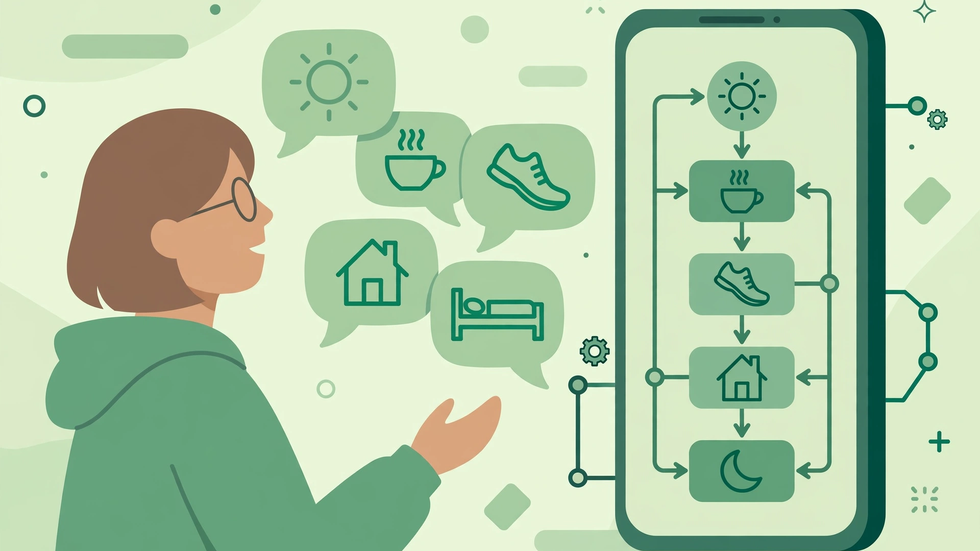
Most people know exactly what they want their phone to do — “silence everything when I get to work, except calls from my family” — but translating that sentence into triggers, actions, and constraints has always been the hard part. The AI Macro Builder closes that gap: you describe the routine in ordinary words, and it drafts a macro you can inspect, adjust, and test before it ever runs on its own. Used well, it turns automation from a technical hobby into something anyone can try in minutes. Used carelessly, it can create a macro that does slightly more, or slightly less, than you intended. This guide teaches the careful way: how to write a description the builder understands, how to audit the draft it produces, and how to keep the final macro safe.
The key insight is that the builder is a drafting assistant, not a mind reader. It works from what you actually wrote, not from what you meant. A vague description produces a vague macro, and a description that forgets an exception produces a macro without that exception. The skill, therefore, is description: naming the starting event, the actions in order, the exceptions, and the stopping condition, all in plain language. Once you learn that pattern, you can describe almost any daily routine and get a draft worth keeping, even if you never touch a trigger menu again.
Prerequisites
You need MacroDroid with the AI Macro Builder available in your version, plus the permissions for whatever the routine will do — for example, notification access for silencing, or location access for a place-based routine. Before you open the builder, write your routine down in one paragraph on paper or in a notes app. Identify four things: what starts it, what should happen step by step, what should not happen or who is excepted, and when it should end or reverse. If you cannot state those four things, the routine is not ready to build yet, with or without AI help. Also decide whether the routine is safe to run automatically; anything involving messages, calls, payments, or sharing should include a confirmation step or be kept manual.
It also helps to know your existing macros, so the builder does not duplicate one you already have. Check your macro list first and, if a similar routine exists, describe the difference explicitly — “like my bedtime macro, but one hour earlier and without the alarm change” — rather than building a near-duplicate from scratch.
Step-by-Step Setup
Step 1: Write the trigger in one clear sentence
Start your description with the starting event, stated as a single fact. “When I connect to my office Wi-Fi” is clear; “when I am at work” is less clear, because the builder must guess whether you mean Wi-Fi, location, or time. Similarly, “every weekday at 7:30 in the morning” beats “in the morning”, and “when my battery falls below 20 percent” beats “when my battery is low”. If the routine has two possible starts, say so plainly — “when I plug in my charger after 10 at night, or when I tap the bedtime tile” — and let the draft show you how it interpreted that choice. A precise trigger sentence prevents most later surprises.
Step 2: List the actions in order, with plain verbs
Follow the trigger with numbered actions in the order they should happen. Use simple verbs: turn on, turn off, set, open, send, wait, speak. For example: “First, turn on Do Not Disturb. Second, lower the screen brightness to 30 percent. Third, set media volume to zero.” Avoid jargon and avoid compressing several actions into one phrase such as “put the phone to sleep”, which could mean five different things. If an action depends on a condition — “only lower brightness if it is after sunset” — write that condition next to the action, not in a separate paragraph where it may be missed. The builder handles ordered lists far better than flowing prose.
Step 3: State exceptions and the ending explicitly
Exceptions are where plain-word descriptions most often fail, because people assume them silently. If family calls should still ring during Do Not Disturb, write “except calls from my starred contacts, which should still ring.” If the routine should not run on weekends, write “only on weekdays.” Then state how it ends: “At 6 in the evening, turn Do Not Disturb off and restore brightness to automatic.” A routine without an ending is a trap — your phone stays silenced long after work ends — so always describe the reversal or the time limit. Read your description back and ask whether a stranger could follow it without asking you a question; if not, add the missing detail.
Step 4: Generate the draft and read it like an editor
Submit the description and wait for the draft macro. Then, crucially, do not enable it yet. Open it and read every trigger, action, and constraint as if you were proofreading someone else’s work. Check the trigger matches your first sentence, check the actions are in your order with your values, and check that your exceptions appear as constraints rather than being dropped. Look for added actions you did not ask for, and for values the builder guessed, such as a brightness level you never specified. If anything is wrong, you have two good options: edit the description and regenerate, or edit the draft macro directly. Regenerating is better when the structure is wrong; direct editing is better when only one value needs fixing.
Step 5: Add a safety constraint before testing
Before the first live test, add a safety net appropriate to the routine. For a silencing routine, that might be a constraint that it only runs when the phone is not in a call. For a messaging routine, add a confirmation prompt so nothing sends without your approval. For a location routine, add a time window so it cannot trigger at an unexpected hour. Name the macro clearly, including the word “AI draft” until it has passed testing, so you can find and review it later. Keep the macro disabled while you make these edits, and enable it only when you are ready to observe it.
Step 6: Test, correct, and rename
Test the macro by reproducing its trigger in a safe way: connect to the Wi-Fi network, change the clock condition, or trigger it manually while watching what happens. Compare each result with your original description, line by line. If an action is missing, add it by hand or refine the description and regenerate. If an action is wrong, fix the value directly. Repeat the test at least twice, including once under the exception condition — for example, have the excepted contact call during the silenced period — because exceptions are the part most likely to be misbuilt. When the macro passes, remove “AI draft” from its name, write a one-line note in its description explaining what it does, and keep your original plain-words description somewhere safe for future edits.
Testing and Verification
Verification means more than “it ran once.” Test the trigger, the full action sequence, the exception, and the ending as four separate checks, and record the result of each. Test after a phone restart, because some triggers behave differently on a fresh boot. Test with the phone locked and unlocked, since notification and display actions can differ between those states. If the routine involves location or Wi-Fi, test it by actually moving or connecting, not only by manual triggering, because manual triggering skips the trigger logic itself. Only when all four checks pass should you consider the macro finished — and even then, watch it for a week before trusting it with anything important.
Troubleshooting
If the builder produces a macro that does something you never asked for, the usual cause is an ambiguous phrase in your description; rewrite that phrase concretely and regenerate. If an exception is missing, it was probably stated too vaguely or too far from the action it modifies — move it next to that action. If the draft uses a trigger you cannot satisfy, such as a sensor your phone lacks, replace that trigger manually with the nearest equivalent your device supports. If the builder refuses or produces nothing useful, shorten the description to the core routine first, get that working, and then add the refinements as a second pass. If a tested macro stops working later, check permissions and battery optimisation before blaming the draft, because system updates frequently reset both.
Tips
Keep a small library of descriptions that worked well, so you can reuse their phrasing for new routines. Describe one routine per draft; combining a morning routine, a driving routine, and a bedtime routine into one description almost guarantees a tangled macro. Prefer concrete numbers — times, percentages, named networks — over adjectives such as “quiet”, “dim”, or “soon”. Review AI-drafted macros monthly, because a routine that was perfect in summer may need different times and brightness levels in winter. Finally, treat the builder as a starting point for learning: reading its drafts teaches you how triggers and constraints fit together, and before long you may find yourself building some macros by hand with confidence.
Frequently Asked Questions
Does the AI Macro Builder replace learning MacroDroid?
No. It drafts a macro from your description, but you still need to read, test, and maintain that macro. The builder lowers the starting barrier; it does not remove the need for checking.
What makes a good plain-words description?
A clear trigger sentence, actions listed in order with concrete values, explicit exceptions, and a stated ending or reversal. Vague adjectives and unstated assumptions are the main causes of poor drafts.
Can I edit a macro after the builder creates it?
Yes. A drafted macro is an ordinary macro. You can edit its triggers, actions, and constraints by hand, or refine your description and regenerate the draft.
Is it safe to let an AI-drafted macro send messages?
Only with a confirmation step and thorough testing. Never enable an untested messaging macro to run fully automatically, and always test with a safe recipient first.
Why did my draft miss an exception I mentioned?
Exceptions stated vaguely or far from the action they modify are easily dropped. Restate the exception directly beside the action, in concrete terms, and regenerate.