For a decade, a glance across a dark room told you everything: red meant charging, green meant full, a slow blink meant a message, and no light at all meant the night was undisturbed. Then the notification LED quietly vanished from most flagship phones, replaced by always-on displays and edge glows — and the phones that kept it often buried its controls. If your phone still has a charging LED (or an always-on-display charging indicator you use the same way), its behaviour deserves a schedule: informative by day, invisible at night, urgent only for the things that are actually urgent. This guide schedules charging led behaviour schedule macrodroid routines by time of day — after an honest check of whether your hardware and your build expose anything to schedule at all.
First, the reality check for charging led behaviour schedule macrodroid plans
Three groups of readers arrive here, and they need different articles folded into one. Group one: your phone has a real notification/charging LED and a settings page for it (common on older Pixels, many Motorola, OnePlus and Xiaomi models, and various mid-range devices). You are the lucky core audience: colours and blink behaviour per state are usually configurable, sometimes per app. Group two: your phone has no LED, but its always-on display or an edge-lighting feature shows charging state. You can schedule the visibility of that indicator — AOD on while charging by day, fully dark at night — which achieves the human goal even though no LED exists. Group three: your phone has no LED and no charging indicator you can influence. Then the honest answer is that there is nothing to schedule, and a software “LED simulator” dot drawn by a third-party app is a different, battery-costing product this guide will not pretend is equivalent. Find your group in the next section before building anything.
A second honesty point: even in group one, Android exposes no universal LED API for apps. Control flows through notification channels and manufacturer settings. MacroDroid’s role is orchestration — flipping the settings and profiles that exist on your build, on a schedule — rather than direct diode programming. Within that role, it is genuinely useful.
How to read this: the estimate adds a small always-on idle cost for MacroDroid itself (about 0.4% of battery per day) to a per-class daily cost for each trigger type you use, scaled slightly by how many macros you run. These are planning estimates from that transparent model — not measurements from your phone. Use them to compare setups before you build, then confirm against the real numbers under Android Settings → Battery.
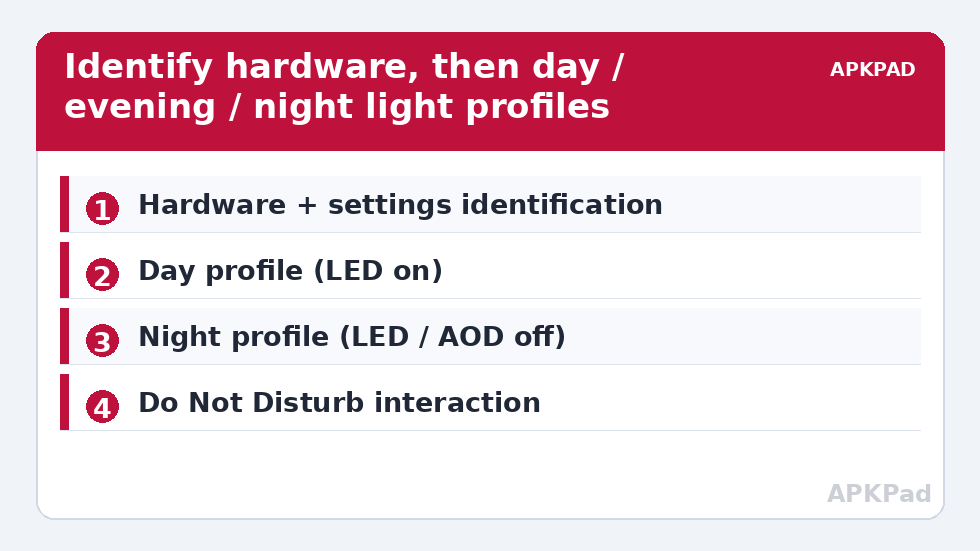
Identify your hardware and your controls
- Plug the phone in, in a dim room, screen off. Is there a physical light? Note its colour while charging.
- Search Settings for “LED”, “notification light”, “pulse”, and “charging light” in turn. Record which page exists and what it offers: on/off, colour per state, blink speed, per-app colours.
- If no LED: check your Always On Display settings for a “show while charging” or contextual info option, and check for edge-lighting features. Note whether AOD itself is schedulable on your build — most modern builds allow a schedule natively.
- Test Do Not Disturb’s effect: enable DND and watch whether the light respects it. On many builds the LED follows notification policy — a free scheduling mechanism via your existing DND routine.
Gathering this on your specific device mirrors the read-before-you-write discipline of the whole System Tweaks category, whose foundations in the adaptive brightness scheduling guide translate directly: the screen and its tiny lamp are both light sources, and both deserve a day curve rather than a fixed setting.
The schedule design: three dayparts, three behaviours
| Daypart | Charging signal | Message/other blink | Rationale |
|---|---|---|---|
| Day (07:00–22:00) | On — colour shows charging vs full | On for priority apps | Glanceable information while you are awake to use it |
| Evening wind-down (22:00–23:30) | On, dim or single colour if offered | Priority only | Information without insistence |
| Night (23:30–07:00) | Off (or AOD fully off) | Off except calls from starred contacts via DND exceptions | A bedroom is for sleeping; a full battery can announce itself in the morning |
Adjust the hours to your life — shift workers should read “night” as “whenever I sleep”. An LED that behaves identically at 3 p.m. and 3 a.m. serves neither hour well.
Permissions
What the macros need depends on which lever your build test found. Toggling Do Not Disturb requires DND access (Notification Policy Access), granted to MacroDroid in special app access. Writing an OEM LED-related settings key, on builds that store it in secure settings, requires the familiar one-time WRITE_SECURE_SETTINGS grant. Changing AOD state is a system/secure settings write on many builds, same grant. Triggering your manufacturer’s LED settings page needs nothing at all. Notification-channel light colours, where you set them, are ordinary app settings you adjust once by hand. In every case MacroDroid will prompt for what a given action needs; grant per action, and remember that permission requirements genuinely shift between Android versions — a build that needed the ADB grant last year may expose a normal action after an update, or the reverse.
Build the schedule macros
Macro A — “Night: lights out”
- Trigger: Day/Time — your night start (23:30 in the example).
- Additional trigger (important): also run the same actions from your existing bedtime/DND routine if you have one, so a manually started early night is respected. Two entries, one state.
- Actions, per your build test: enable the LED-off/AOD-off setting via the action or key that worked manually; or, if DND already suppresses your LED, simply ensure night DND is on.
- Constraint: none on time alone — but if you sometimes charge overnight at an airport, a “home Wi-Fi connected” or location constraint keeps travel nights informative. Optional, personal, decide consciously.
Macro B — “Morning: lights back”
- Trigger: Day/Time — your wake time; or your alarm-dismissed event, which tracks real life better than a fixed clock after weekends.
- Actions: reverse Macro A exactly — LED/AOD behaviour restored to the day profile.
- Add the same pair for the evening wind-down if your build supports a dim/intermediate state; if it offers only on/off, skip the middle daypart rather than simulating it with notification juggling.
The dashboard techniques in floating-button status dashboards make a fine companion: one glanceable indicator of “which light profile is active” saves confusion during the first week. And the sound-side equivalent — outputs behaving differently by context — is covered by this batch’s per-app audio output routing guide. The APKPAD homepage links the full set if you are building a coordinated day/night profile.
A special case: the full-battery signal
The most-loved LED behaviour is “tell me when it is full”. MacroDroid approximates it on any phone: a Battery Level trigger at 100 percent (or your preferred 90/95) constrained to charging, firing a notification, a soft spoken alert, or — on group-one phones — the LED’s “full” state. Suppress it in the night profile too: a phone that whispers “full” at 2 a.m. has misunderstood the assignment.
Troubleshooting
- The schedule fires but the light ignores it: your build’s LED is controlled by a vendor component that does not follow the key or profile you toggled. Retest which lever — DND, settings key, native LED page — actually moves your hardware, using the plug-in-and-watch method, and rebuild around the lever that works.
- AOD still glows at night despite the macro: many builds have two AOD switches (the feature toggle and its schedule). Prefer setting AOD’s own schedule natively and let MacroDroid handle only the parts the native schedule cannot express.
- Message blink wakes me despite night mode: a DND exemption or a per-channel light setting is overriding the profile; audit the channels of your noisiest apps.
- Behaviour changed after a system update: LED and AOD plumbing is exactly what updates rearrange. Re-run the identification section.
- I have no LED and no AOD option: then, respectfully, this feature is not on your phone. A charging-state floating indicator via MacroDroid’s own UI (visible when the screen is on) is the nearest honest substitute.
Undo
Disable the schedule macros and set the LED/AOD pages back to your preferred fixed behaviour. These are ordinary settings and profiles; nothing in this guide modified system files or hardware, and stock behaviour returns immediately.
Frequently Asked Questions
My phone has no notification LED. Can this guide still help?
Partly. If your always-on display or edge lighting shows charging state, you can schedule its visibility — on by day, fully dark at night — which meets the same human need. If your phone has neither an LED nor a controllable charging indicator, there is no equivalent to schedule, and third-party on-screen LED simulators cost battery and are not the same thing.
Can MacroDroid set the LED colour directly?
Not through a universal Android API, because none exists for apps. LED colours live in notification channel settings and manufacturer settings pages. MacroDroid schedules and toggles the behaviours your build exposes — DND state, LED or AOD settings keys, profiles — rather than addressing the diode itself.
Does Do Not Disturb affect the charging LED?
On many builds, yes: the LED follows notification policy, so a night DND schedule quietly handles LED suppression too. Test it by enabling DND with the phone plugged in and watching the light. If yours behaves this way, your scheduling job becomes much simpler.
How can I be told the battery is full without a light at night?
Use a Battery Level trigger at your target percentage, constrained to charging and to your daytime hours, firing a notification or spoken alert. Constraining it to the day matters: an audible full-battery alert at 2 a.m. defeats the purpose of a night profile.
Why does the LED setting keep resetting after updates?
Manufacturers relocate LED and AOD controls between releases, and updates can restore defaults. After any major update, re-run the identification steps in this guide to find where the controls now live, and re-point the schedule macros at the working lever.