A sunrise wake up routine macrodroid build replaces the single harsh alarm blast with a gentler sequence: the screen warms up, the volume rises in steps, soft light or music fades in, and only then does a normal alarm sound if you are still asleep. Done well, you wake during the easy part of the sequence on most mornings and the loud stage becomes a back-up you rarely hear.
Be honest about the limits first. MacroDroid cannot track your sleep cycles like a dedicated sleep app with a wearable, and it cannot control every smart bulb directly. What it can do reliably is run a timed, stepped routine on your phone: raise media volume gradually, increase brightness gradually, launch a music or radio app at low volume, and optionally send a request to your lights through their own app or webhook. That timed fade is the heart of this guide.
Designing a sunrise wake up routine macrodroid sequence that works
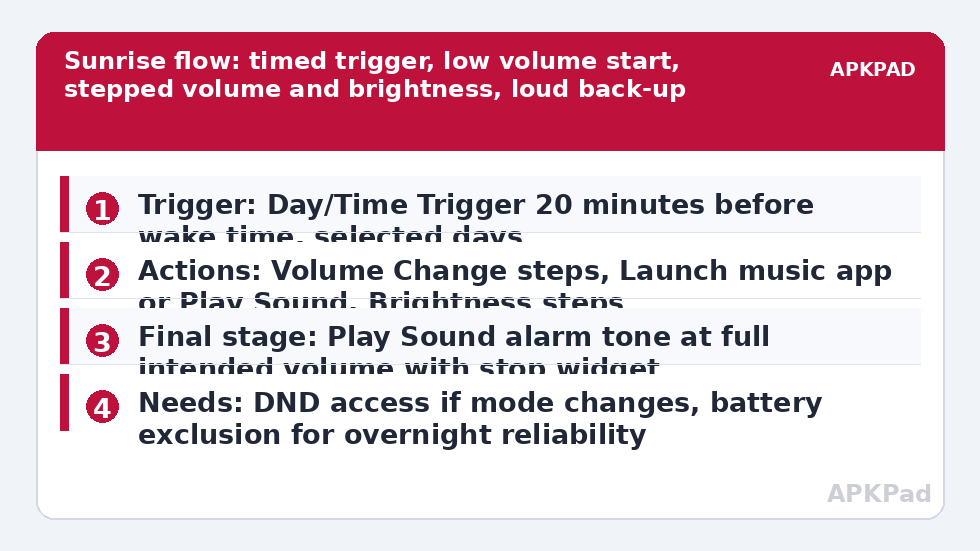
Work backwards from the time you must be awake. If your hard deadline is 7:00, start the fade at 6:40. The first ten minutes should be almost imperceptible: very low volume, low brightness if the phone is face up nearby, and no speech. The middle section raises both in clear steps. The final section is your safety net, a normal alarm tone at normal volume, because a gentle routine that lets you sleep through work is worse than a loud alarm.
| Stage | MacroDroid setting |
|---|---|
| Start, 20 minutes before | Day/Time Trigger fires, media volume set low, music or ambient sound launched quietly |
| Middle steps | Wait actions between Volume Change steps so volume and brightness climb gradually |
| Final back-up | Play Sound with your normal alarm tone at full intended volume if not dismissed |
Keep the whole sequence in one macro with Wait actions between steps, rather than scattering five separate time triggers across your macro list. One macro is easier to disable on holiday, easier to read in the log, and easier to stop with a single widget tap when you wake early and want silence.
How to read this: the estimate adds a small always-on idle cost for MacroDroid itself (about 0.4% of battery per day) to a per-class daily cost for each trigger type you use, scaled slightly by how many macros you run. These are planning estimates from that transparent model — not measurements from your phone. Use them to compare setups before you build, then confirm against the real numbers under Android Settings → Battery.
Build the gradual routine step by step
- Create a macro with a Day/Time Trigger set twenty minutes before your latest wake time. Select only the days the routine applies to, for example Monday to Friday, so weekends are not hijacked by a workday fade.
- Add Volume Change for the Media stream and set a low starting level, around the first quarter of the slider as a starting point to test, not a recommendation for every room.
- Add Launch Application for your music, radio or ambient sound app, or use Play Sound with a long, gentle local audio file if you prefer no app at all. Local files are more predictable than streaming on a patchy morning connection.
- Add a Wait of three to five minutes, then another Volume Change a step higher, and a Brightness step higher if your phone sits face up where the light helps. Repeat this pattern two or three times.
- Finish with a clearly louder stage: Play Sound with your normal alarm tone, or a Speak Text good-morning message followed by the tone, at the volume you know wakes you.
- Add an easy stop route. A MacroDroid widget or a notification action that stops this macro and pauses playback means waking early does not leave music creeping upward in an empty room.
Test the full sequence on a weekend morning when sleeping in costs nothing. Lie there, listen to each step, and adjust the gaps. Most people discover their starting volume is either inaudible through a bedroom door or already loud enough to wake them abruptly, and both faults are obvious only in a real test, never in the macro editor.
Adding light without overpromising
If you own smart lights, MacroDroid usually reaches them indirectly: through an HTTP request to the lights service or hub, through a plugin action, or by launching the lights app to a preset scene. Our guide to geofenced location triggers for smart home lights covers the same connection methods for arrivals, and the webhook approach described there works equally well at wake time. Set the bulb scene itself, its fade duration and its final brightness, inside the lights app where those controls belong, and let MacroDroid simply start that scene at the right minute.
If you have no smart lights, the phone screen can still help a little when the phone is charging on a bedside stand, face up. A slow Brightness climb combined with a warm-coloured ambient display is no substitute for a bright room, but it beats a black screen followed by a siren. Do not leave the screen at full brightness for long periods as a habit; keep the bright stage short, as the guide to automating screen brightness boosts explains for camera use, because a boosted screen is one of the hungriest parts of the phone while it is on.
Permissions and morning reliability
- Do Not Disturb access: grant Notification Policy Access if your routine changes DND mode as part of waking, for example releasing night DND at the final stage.
- Modify system settings: Brightness steps may ask for permission to modify system settings, and on some devices the MacroDroid Helper app or an ADB grant, which MacroDroid will prompt for at that step.
- Alarm reliability: Android may treat media playback differently from a true alarm stream. If your final back-up must cut through silent mode, test it in the exact mode you sleep in, and consider keeping a conventional clock alarm as a second safety net during the first week.
- Battery exclusion: essential, and covered in the troubleshooting section below.
Version differences matter here. Newer Android versions restrict background app launches and exact timing more tightly than older ones, and OEM skins add their own rules on top. A routine that launches a streaming app perfectly on one handset may only play local files reliably on another. Prefer local audio for the critical final stage, because it removes the network and the other app from the list of things that can fail at 6:40 in the morning.
Variations for shifts, weekends and households
Clone the macro rather than complicating it. Keep a workday copy with an early fade, a weekend copy that starts later and never reaches the loud stage, and disable both with one tap when you travel. The day-selection logic behind this is explored fully in using day-of-week triggers for workday and weekend routines, later in this series. For a stricter wind-down at the other end of the day, pair this with the time-based Do Not Disturb routines so the phone quiets down at night and wakes up in the morning as one joined-up system, all discoverable from the Macro Triggers category and the APKPad homepage.
In a shared bedroom, negotiate the fade. A routine that wakes a partner twenty minutes before their own alarm will be disabled within a week, however elegant it looks in the editor. Headphones on the pillow, a vibrating wearable stage first, or a much shorter fade are all reasonable compromises. The best wake routine is the one still enabled in three months.
Why the routine fires late or not at all
The classic cause is OEM battery management killing MacroDroid in the background overnight, which is precisely when this macro must be alive. Samsung, Xiaomi, Oppo, Vivo and other manufacturers apply sleeping rules that can delay or swallow a timed trigger entirely, so the phone wakes you with nothing at all, or starts the fade at the final loud stage because the earlier steps never ran.
Set MacroDroid battery use to Unrestricted in Android Settings, Apps, MacroDroid, Battery. Then apply the manufacturer layer: remove MacroDroid from Sleeping apps on Samsung, choose No restrictions and enable Autostart on Xiaomi, or allow background launch in your brand’s manager. Keep the phone on charge overnight during your first week of testing if your battery allows the routine to run from a stable power state, restart once after changing the settings, and verify with a harmless weekend test time before trusting it on a workday with a train to catch.
Frequently Asked Questions
Can MacroDroid wake me during light sleep like a sleep-tracking app?
No. This routine is time-based, not sleep-cycle-based. MacroDroid runs the fade at the clock times you set and does not know which sleep stage you are in. If sleep-cycle waking matters to you, use a dedicated sleep app for detection and let this routine handle volume, light and the final back-up sound.
Should the gradual routine replace my normal alarm completely?
Not in the first week. Keep a conventional alarm set a few minutes after the routine’s loud stage until you have several successful mornings in a row, including one after a phone restart. Once the routine proves itself on your handset, most people keep a quiet back-up alarm anyway for important days.
Why did only the loud final stage play this morning?
Most often the earlier steps were killed or delayed by OEM battery management and the macro effectively started late, or the streaming app failed to load and only the local final sound worked. Set MacroDroid to Unrestricted battery use, prefer a local audio file for at least the early stages, and check the MacroDroid log for when each step actually ran.
Can I make the lights fade in as part of the same macro?
Yes, if your lights accept a scene start from their app, a plugin or an HTTP request. Build and test the fade inside the lights app itself, then have MacroDroid trigger that scene at the start of the wake sequence. Test it on a morning when a failed light scene is an inconvenience, not a problem.
Does the sunrise routine use much battery overnight?
The waiting macro itself uses very little, because it is essentially a scheduled trigger. The playback and bright screen stages use power while they run, which is why most people use the routine while the phone charges overnight. Any saving or cost figures are estimates that vary by device, volume and screen time.