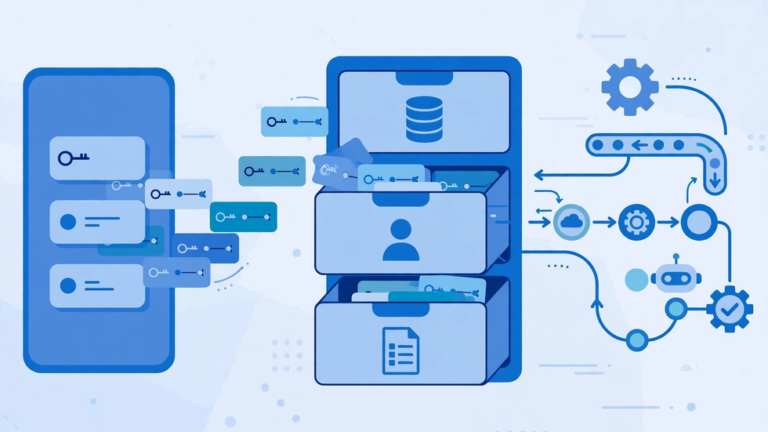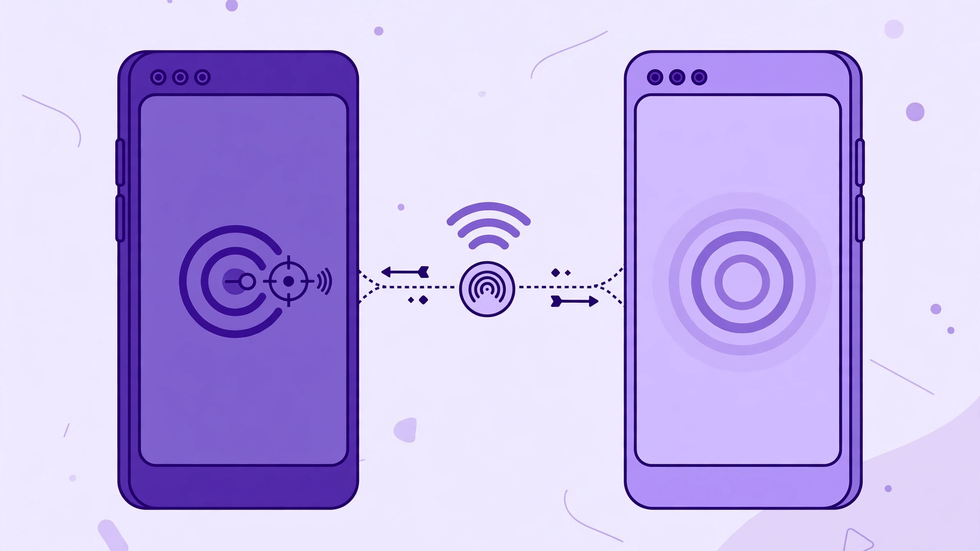
There are moments when the phone you need to control is not the phone in your hand: a family member’s device needs its volume restored, a spare phone in another room should start playing music, or your own second phone needs silencing from across the house. MacroDroid remote control lets one phone send a command that another phone receives and acts on, turning two separate devices into a small, cooperative system. Done thoughtfully, it is enormously convenient. Done carelessly, it is a security risk, because any channel that can control a phone can also be misused. This guide therefore treats setup and safety as one job: you will build a working remote link, restrict it to commands you actually need, and test it until you trust it.
Remote control in MacroDroid works through triggers that listen for an incoming signal — commonly a message, a notification, or a webhook-style command, depending on your setup — and macros on the receiving phone that act only when that signal matches an expected pattern. The sending phone does not reach inside the other phone directly; it sends a recognised instruction, and the receiving phone decides what that instruction means. That distinction is your main safety lever. The receiving phone should only ever act on a short list of pre-approved commands, from a known sender, with clear limits — and everything else should be ignored.
Prerequisites
You need two Android phones, both running MacroDroid, with the receiving phone’s permissions already granted for the actions you plan to control, such as volume, Do Not Disturb, or media playback. Both phones need a reliable way to reach each other: the same Wi-Fi network, mobile data, or a messaging route you both already use. Decide in advance exactly which commands the receiving phone will accept — start with no more than four, such as “silence”, “restore volume”, “play music”, and “find my phone” — and write them down with their exact wording. Agree the command words with the other phone’s owner if it is not your phone, and never set up remote control on someone else’s device without their full knowledge and consent.
Security preparation matters as much as technical preparation. Choose command words that are unlikely to appear in ordinary messages, avoid using your name or obvious words such as “unlock”, and never include a command that unlocks the phone, disables its lock screen, reads messages aloud to a stranger, or shares location without an explicit, informed agreement. Keep both phones’ systems and MacroDroid updated, and use lock screens on both devices. Back up the receiving phone’s macros before you add remote triggers, so you can remove the whole experiment cleanly if needed.
Step-by-Step Setup
Step 1: Design the command list on the receiving phone
On the receiving phone, list each approved command with its exact trigger phrase and its exact result. For example, the phrase “MD SILENCE” sets Do Not Disturb on, while “MD RESTORE” turns it off and sets media volume to half. Keep phrases short but distinctive, and use a shared prefix so the receiving macro can recognise remote commands instantly and ignore everything else. Write the list on paper first, because changing a phrase later means updating both phones. Avoid commands with irreversible effects at this stage; you can add more later, once the basic link is proven.
Step 2: Build the receiving macros
On the receiving phone, create one macro per command. Its trigger listens for the incoming signal carrying your exact phrase — for instance, a received message or notification trigger filtered to that phrase and, where possible, to the sender’s identity. Its actions perform the agreed result and nothing more. Add a constraint that limits when the macro can run, such as only when the phone is not in a call, or only during daytime hours for a loud “find my phone” sound. Add a final action that logs the event, for example by writing a line to a local log or showing a brief notification, so the phone’s owner can always see that a remote command ran. Keep each receiving macro disabled until all of them are built.
Step 3: Restrict the sender
Where the trigger allows it, restrict the receiving macro to a specific sender, such as your own number or account, so a forwarded message or a stranger’s message cannot trigger it. If sender restriction is not available for your chosen channel, make the phrase longer and more secret, and add a second check, such as requiring the message to arrive within a particular time window or to contain a second code word. Never rely on obscurity alone for a powerful command; layer the checks. Test this restriction deliberately by sending the phrase from a different source if you can, and confirm the receiving phone ignores it.
Step 4: Build the sending controls
On the sending phone, create an easy way to issue each command: a macro tile, a scene button, or a simple macro that sends the exact phrase through the chosen channel. Label each control with what it does to the other phone, not with the code phrase — “Silence spare phone” is clearer than “Send MD SILENCE”. Double-check the destination: the message or command must go to the receiving phone and to no one else. For household use, a scene with four large buttons, one per command, is ideal, because it prevents typos that a typed message might introduce. Test each sending control while watching the receiving phone.
Step 5: Enable, test, and confirm both directions
Enable the receiving macros one at a time, testing each command immediately after enabling it. Confirm the receiving phone performs the action, shows its log or notification, and then returns to normal. Test the “find my phone” style command from another room, test the silence command during a test call if safe, and test that an ordinary message without the code phrase does nothing. If the receiving phone belongs to someone else, have that person watch the tests and confirm they are comfortable with each result. Only when every command passes should you consider the link ready for everyday use.
Step 6: Add an off switch
Every remote control system needs a local off switch. On the receiving phone, create a simple way for its owner to disable all remote macros at once — a tile, a scene button, or a single “remote off” macro that disables the receiving macros. Show the owner how to use it, and agree that they may switch it off at any time without explanation. Also set a review habit: once a month, check the log of remote commands together and remove any command that is no longer used. A remote link that nobody reviews slowly becomes a forgotten back door, and forgotten back doors are the ones that cause trouble.
Testing and Verification
Verify the system under realistic conditions: different rooms, Wi-Fi and mobile data, locked and unlocked receiving phone, and during an ordinary day rather than only at your desk. Confirm that commands arrive promptly, that the receiving phone logs each one, and that wrong phrases and wrong senders are ignored. Test the off switch and confirm that, once off, no remote command works until it is deliberately re-enabled. Test after restarting both phones, because a link that only works until the next reboot is not a link you can rely on. If any test fails, disable the receiving macros until you understand why, rather than working around the failure.
Troubleshooting
If a command never arrives, check the sending phone’s destination and message history first, then the receiving phone’s trigger filter and sender restriction — a single character difference in the phrase is the most common cause. If a command arrives but nothing happens, run the receiving macro manually to separate a trigger problem from an action problem, and check its permissions. If commands work intermittently, suspect battery optimisation putting MacroDroid to sleep on the receiving phone, or a messaging app delaying delivery; exclude MacroDroid from aggressive battery saving and test again. If a command triggers twice, check whether two macros share the same phrase, and make each phrase unique. If you ever suspect the phrase has leaked, change all phrases immediately and re-test.
Tips
Start small and stay small: four trusted commands beat twenty half-tested ones. Prefer commands that help rather than commands that impress — silencing, locating, and media control are genuinely useful, while remote settings changes are rarely worth their risk. Keep the command list written down in a safe place, not in a shared note or a screenshot. Review the receiving phone’s log regularly, and treat any unexplained entry as a reason to pause the system and investigate. Finally, remember consent: remote control is a shared arrangement, and the receiving phone’s owner should always be able to see, question, and stop it.
Frequently Asked Questions
Does MacroDroid remote control give full access to the other phone?
No. The receiving phone only runs the specific macros you built for recognised commands. It does not hand over general control, and anything outside your command list is ignored.
Can I set this up on someone else’s phone without telling them?
No, and you should not try. Remote control requires the other person’s knowledge and consent, and they should know every command and how to switch the system off.
What if someone learns my command phrase?
Change all phrases immediately, tighten sender restrictions, and review the receiving phone’s log for unexplained commands. Treat a leaked phrase as a reason to rebuild the link, not merely rename one command.
Why does a remote command sometimes arrive late?
Messaging and network delivery can delay commands, and battery optimisation can delay MacroDroid waking on the receiving phone. Exclude MacroDroid from aggressive battery saving and test on both Wi-Fi and mobile data.
How do I stop remote control completely?
Disable or delete the receiving macros on the controlled phone. The local off switch does this quickly, and deleting the macros removes the link entirely.