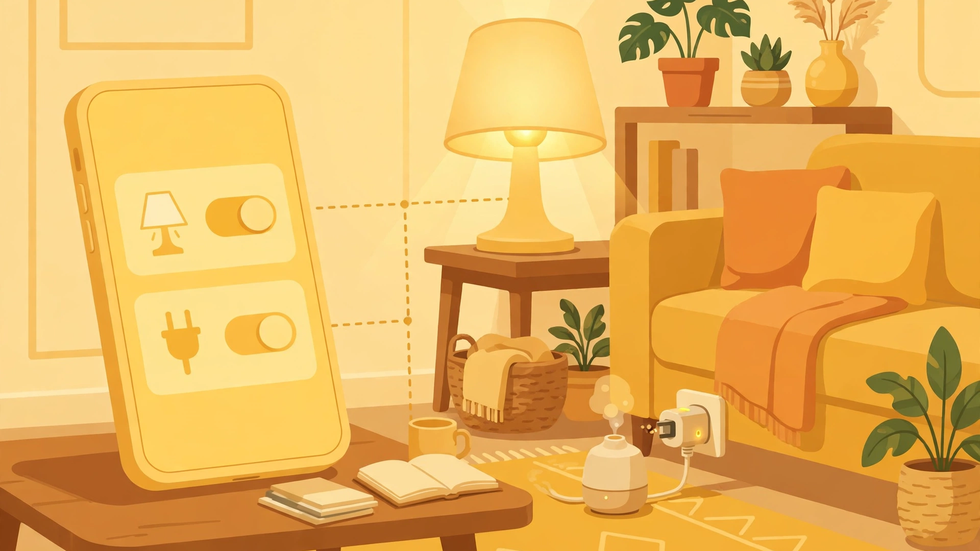
Smart plugs and lights usually come with their own app, their own account, and their own schedule — which is fine until you want your phone’s automation to control them as part of a wider routine. A bedtime macro should be able to switch the lamp off, a leaving-home macro should be able to cut power to a heater, and a morning macro should be able to warm the room’s lights up gently. HTTP requests from MacroDroid make that possible for devices that expose a local or cloud web interface: your macro sends a short web request, and the device obeys. This guide shows how to do it safely, starting with local control on your home network, protecting any credentials, and building macros you can trust not to leave a device in the wrong state.
The reason to prefer HTTP control over juggling several apps is coherence. One routine — “goodnight” — should handle the phone, the lights, and the plugs together, rather than requiring three apps and three taps. HTTP is also inspectable: you can see exactly what your macro sends, test it from a browser first, and log what came back. That transparency is valuable in a home, where a light left on all night is wasteful and a heater left on is a safety concern. The discipline of this guide is therefore verification at every step: test the request by hand, then in a macro, then as part of a routine, and always confirm the device’s real state.
Prerequisites
You need MacroDroid Pro for HTTP requests, a smart plug or light that accepts HTTP control — check its documentation for a local API, a web interface, or a documented cloud endpoint — and both your phone and the device on the same home network for local control. Find the device’s address and control details from its own app or manual: typically an address on your local network, a path for on and off, and possibly a token or username and password. Write those details down privately, never in a shared note. You should also know how the device behaves when it loses power or network: does it return to its previous state, default to off, or default to on? That behaviour determines how careful your macros must be about confirming state. Back up your macros before adding device control, and start with a single lamp or plug, not a whole house.
Prefer local control over cloud control whenever your device offers it. Local requests stay inside your home, work when your internet connection fails, and avoid sending device data to a distant server. Cloud control is a fallback for devices that offer no local option, and it deserves extra care with credentials.
Step-by-Step Setup
Step 1: Test the device’s request from a browser
Before involving MacroDroid, test the device’s control request from a browser or a simple HTTP tool on the same network, using the documented address and path for “on”. Confirm the device actually switches on, then test “off” the same way. Note the exact address, method, and any headers or credentials required, and note what response the device returns for success. If the browser test fails, the problem is in the address, credentials, or network — not in MacroDroid — and fixing it here saves hours of macro debugging. Keep a private note of the working requests; they are the specification your macros will follow.
Step 2: Build a single on-off macro pair
In MacroDroid, create two test macros with manual triggers: one named “Lamp On (Test)” and one named “Lamp Off (Test)”. Each contains a single HTTP Request action replicating the working browser request. Run each macro and confirm the device responds in the real world, not merely that MacroDroid reports success — look at the lamp. Check the response variable as well: store the status code and confirm it indicates success. If the device needs authentication, store the credential in a variable rather than in a visible label, and never display that variable in a notification. Keep these test macros until the routine is proven, then rename them without “(Test)”.
Step 3: Add state confirmation
A macro that sends “on” and assumes success is trusting the network. Add confirmation: after the request, wait a few seconds, then send a status request if the device supports one, and check its reply against the intended state. If the status matches, continue silently; if it does not, notify yourself and, for a critical device such as a heater plug, retry once and then notify again if it still fails. This confirmation step is what separates a toy integration from a household one. For devices without a status endpoint, confirm by observation during testing and by a periodic manual check, and be honest in the macro’s description that state is assumed rather than verified.
Step 4: Combine devices into routines
Now fold device control into routines you already use. A bedtime macro can send “off” to the living-room lamp and the spare-room plug after silencing the phone; a morning macro can send “on” to the bedroom lamp at low brightness if the device supports a brightness parameter; a leaving-home macro can switch off a defined list of plugs in sequence, with a short pause between requests so the network and devices are not flooded. Order matters: switch off heaters before lights you need to see by, and switch on lights before anything else in a dark room. Keep each routine’s device list short and explicit, so you can audit exactly what a routine controls.
Step 5: Secure credentials and limit scope
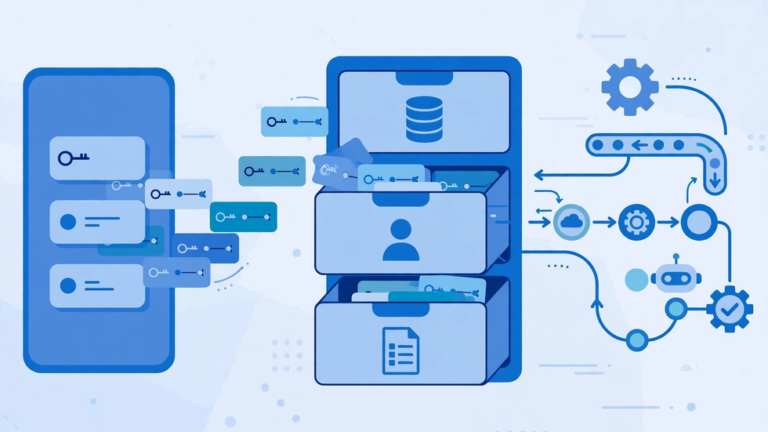
Review every macro that talks to a device and ask three questions: does it send only the credentials it needs, does it store them safely, and does it limit what it can do? Remove any credential from macro names, scene labels, and notifications. If a device offers separate credentials or permission levels, use the most limited one that still allows on, off, and status. Add constraints so device macros cannot run unexpectedly — for example, only on your home Wi-Fi for local devices — preventing a macro from firing uselessly, or worse, against a cloud endpoint while you are away. Never share or export a device-control macro without stripping credentials first, and rotate a credential immediately if you suspect it has leaked.
Step 6: Add a household off switch
Build a scene or tile called “All Off” that switches off every device in your defined list, with a confirmation prompt, so anyone in the household can shut the house down safely without understanding macros. Show the household how to use it, and place it where it is reachable but not tappable by accident — a scene button rather than a home screen widget that a pocket might press. Test “All Off” regularly, because a safety control that has silently broken is worse than no control at all. Keep the device list in the scene’s description updated whenever you add or remove a plug or light.
Testing and Verification
Test each device macro on home Wi-Fi and, for cloud devices, on mobile data; test with the phone locked and after a restart; test the full bedtime and leaving-home routines end to end, confirming each device’s real state after each run. Test the failure path deliberately by unplugging a test device’s network and confirming the macro notifies you rather than reporting false success. Test “All Off” with the household present. Only when single-device control, routine control, failure notification, and the off switch all pass should you rely on the system daily.
Troubleshooting
If a browser test works but the macro fails, compare the macro’s address, method, headers, and credentials character by character with the working browser request. If a device responds intermittently, suspect Wi-Fi coverage or an overloaded device; add a pause between requests and reduce how often routines poll status. If a device changes state but MacroDroid reports failure, check the response parsing — some devices return success in an unusual format that a strict status check misreads. If a macro controls the wrong device, its address is wrong or duplicated; label macros with room and device names and verify addresses against your private note. If a credential stops working, check whether the device’s app rotated it or a firmware update changed authentication, and update the stored variable, not scattered copies.
Tips
Start with one device, prove it, then add the next; a house automated all at once is a house debugged all at once. Prefer local control, keep requests short, and pause briefly between requests to different devices. Log device actions during the first weeks, then reduce logging once stable. Review device firmware and app updates for API changes, and retest control after each update. Finally, keep a manual way to control every device — its own app or a physical switch — because automation should add convenience, never remove the ability to turn something off by hand.
Frequently Asked Questions
Do I need MacroDroid Pro to control smart plugs?
Yes, for HTTP requests. Sending a web request to a device and reading its response requires Pro features; basic macros without network actions do not.
Is local control better than cloud control?
Usually, yes. Local requests stay on your home network, keep working when the internet fails, and avoid sending device data to a distant server. Use cloud control only when a device offers no local option.
How do I keep device passwords safe in macros?
Store credentials in variables, never in macro names, scene labels, or notifications, and strip them before sharing or exporting a macro. Rotate a credential immediately if it may have leaked.
What if a device has no status check?
Confirm state by observation during testing and by periodic manual checks, and note in the macro’s description that state is assumed rather than verified. Prefer devices with status endpoints for critical loads such as heaters.
Can one macro control several plugs at once?
Yes. Send requests in sequence with short pauses between them, and confirm each device’s state. Avoid flooding many devices simultaneously, which can cause missed requests.